



Mobile Device
- Make sure your mobile device is not jailbroken or rooted.
- Mobile device operating system at least iOS 9.0 or higher / Android 4.4.2 or higher.
- Make sure the availability of mobile device storage is at least 150 MB.
- Make sure you have a stable internet network, it is recommended to use a WIFI network for a more stable connection.
- Make sure your mobile network signal is good to get SMS. Sending SMS One Time Password (OTP) is highly dependent on your telecommunications provider.
Open Opening Account Information
- Opening a Maybank Savings Account via the M2U ID App is only available for Indonesian Citizens (WNI).
- Prepare your eKTP and NPWP
- Make sure you enter the correct eKTP data and photo which registered on Dukcapil.
- Make sure the selected user ID is still available and has not been used by anyone else.
- Create a user ID of at least 8 characters and a maximum of 20 characters which can consist of a unique combination of initials, names, dates or other numbers that are easy to remember
- Verification via video call with Maybank Customer Care may still be required if your
data does not match.
Verification Guide via Video Call
Security Info
Anticipation of security using technology will not run perfectly without participation or commitment from customers. Always carry out the principle of prudence when making transactions:
- Create a password of at least 8 characters and a maximum of 20 characters consisting of a combination of numbers, uppercase letters, lowercase letters and special characters.
- Avoid using your name and date of birth in your password.
- Maintain the confidentiality of your password, even with staff at our bank.
- Maintain the confidentiality of your TAC (SMS Token). Do not share the contents of SMS Tokens to others.
- Make sure that you have logged out after using M2U ID Web.
- Avoid using Internet Banking through publicly owned computers, especially at Internet Cafes due to the possibility of "keyboard tabbing", a program that will read and store your user ID and password.
- Make sure the computer you are using is free of virus by always updating your personal anti-virus with the latest version.
- Avoid downloading files with unclear titles and sources.
- Always activate your smartphone lock so that it cannot be accessed by others.
Need Help ?


Guide to Open Maybank Global Access Savings Account via M2U ID App
Step 1: Opening an Account
|
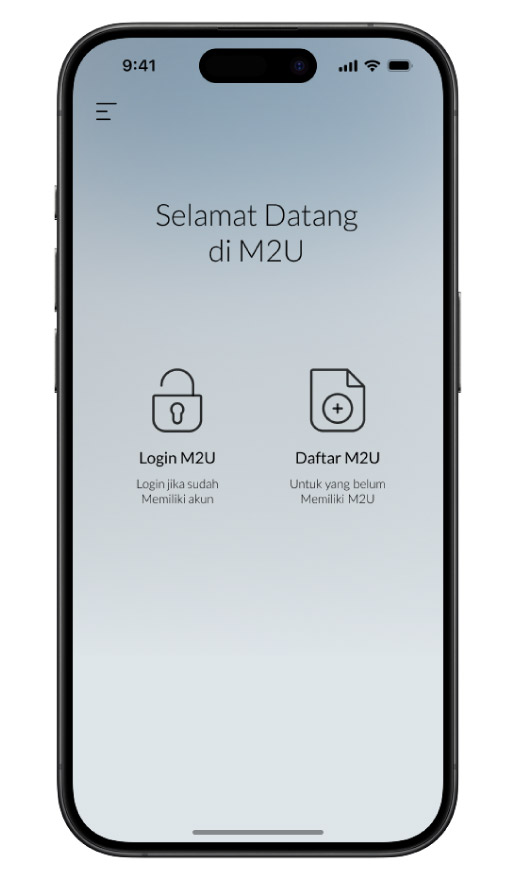
Select “Daftar Maybank2u” |
 |
|
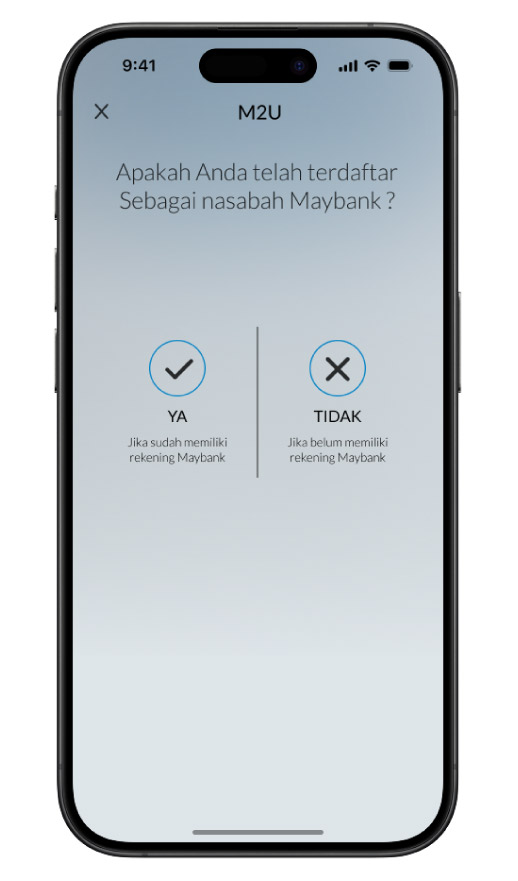
Select “Tidak” if you haven’t had any Maybank accounts |
 |
|
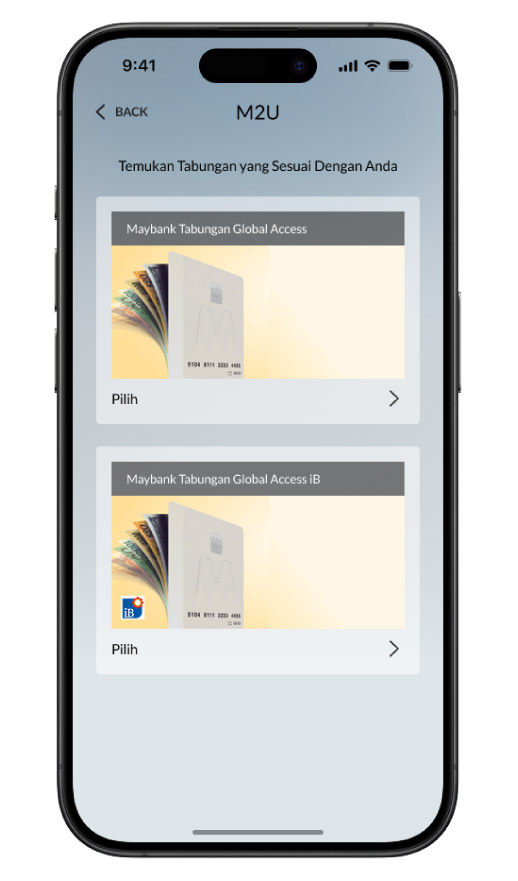
Select Shariah or Regular account that suits your global transaction needs |
|
|
|
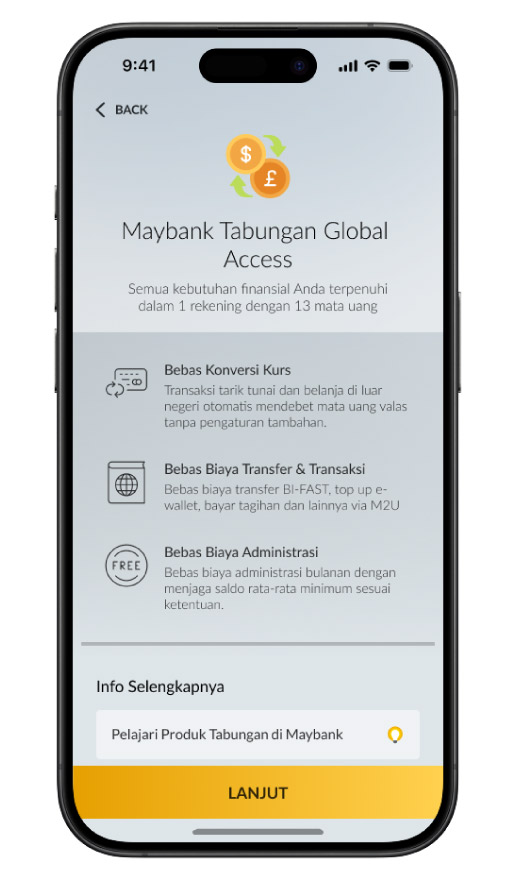
Read the benefits and the information about Maybank Tabungan Global Access, then click “Lanjut” |
 |
|
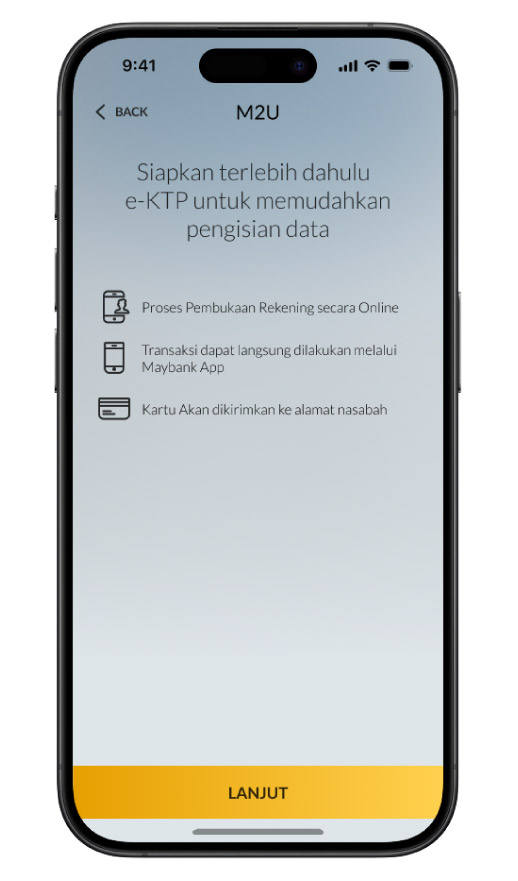
Prepare your e-KTP |
 |
|
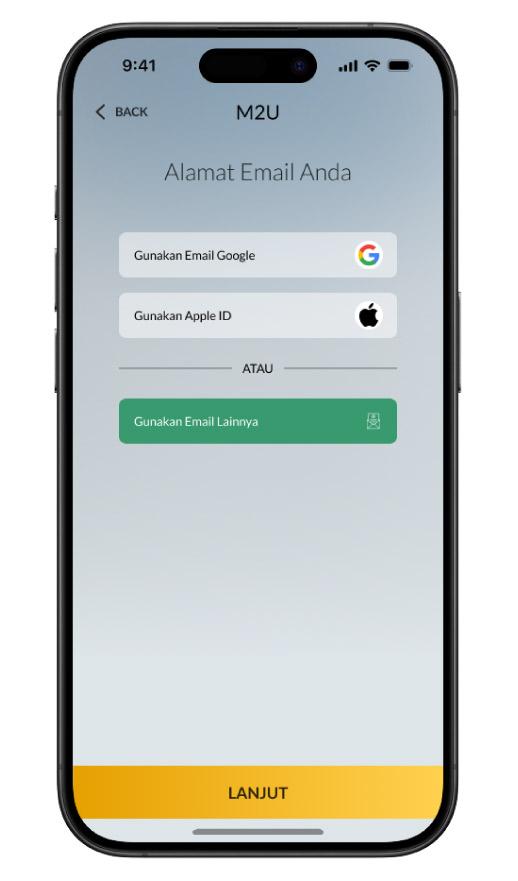
Select the email you would like to use |
|
|
|
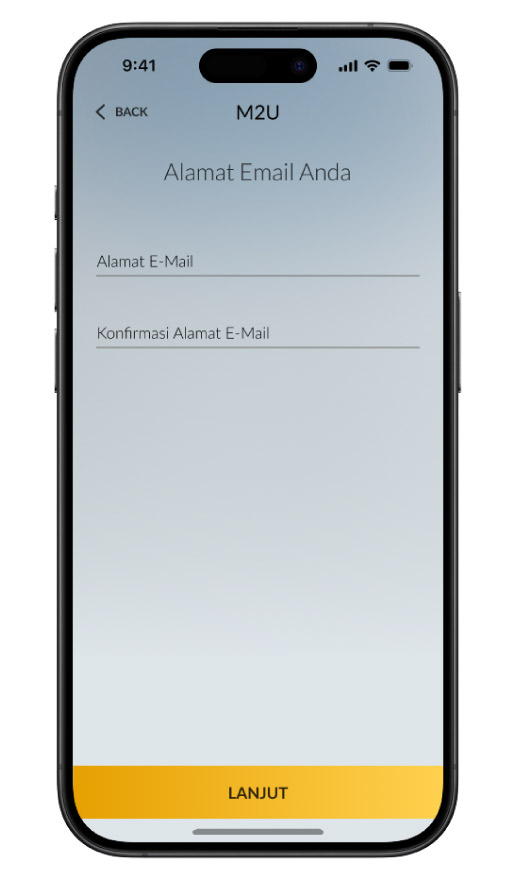
If you select “Gunakan Email Lainnya”, input your email manually, then click “Lanjut” |
 |
|
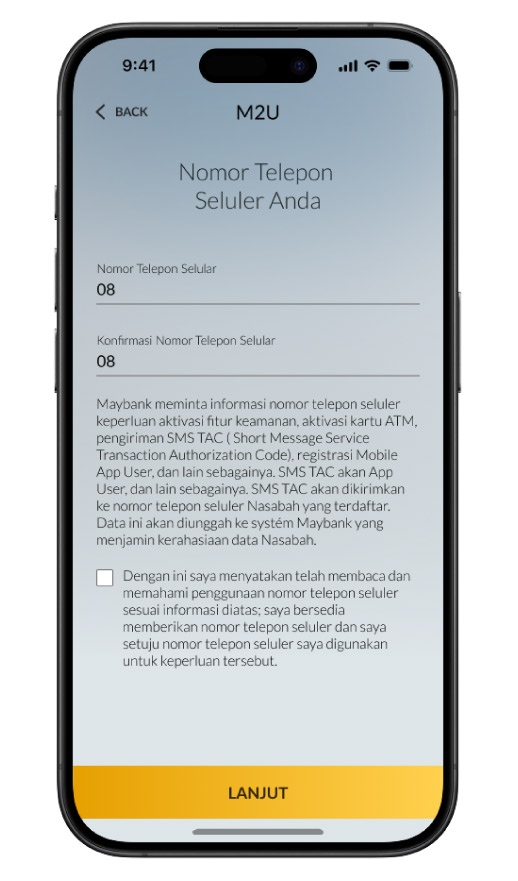
Input your active phone number, tick the confirmation box, then click “Lanjut” |
 |
|
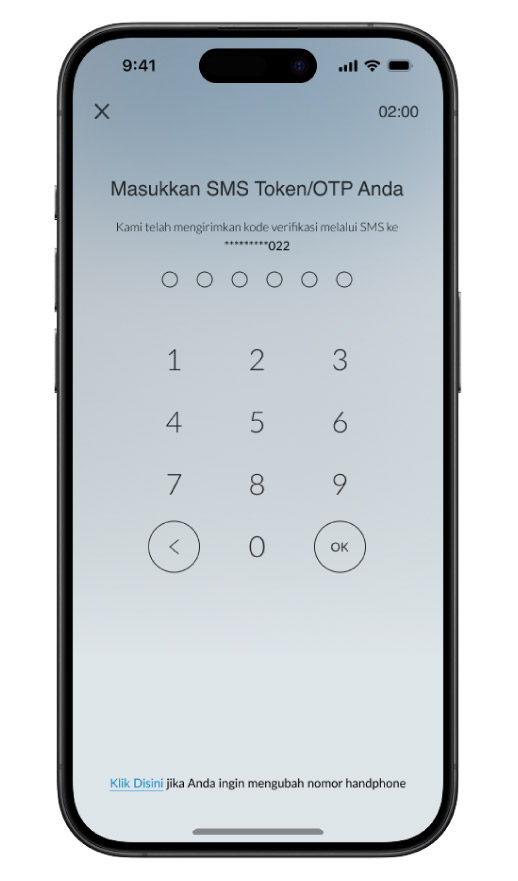
Input OTP code sent to your registered phone number. If you haven’t received the code, please wait until OTP sending time expired, then click “Kirim OTP” to resend |
|
|
|
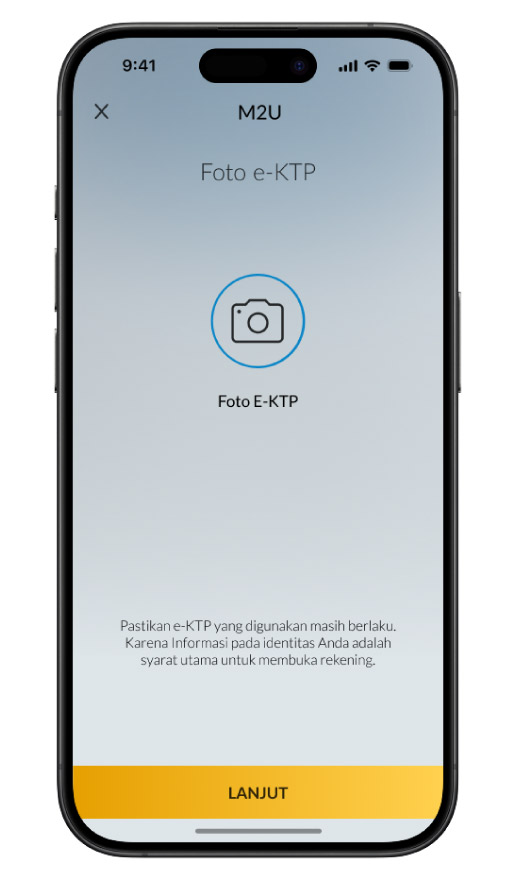
Prepare e-KTP and click “Lanjut” |
 |
|
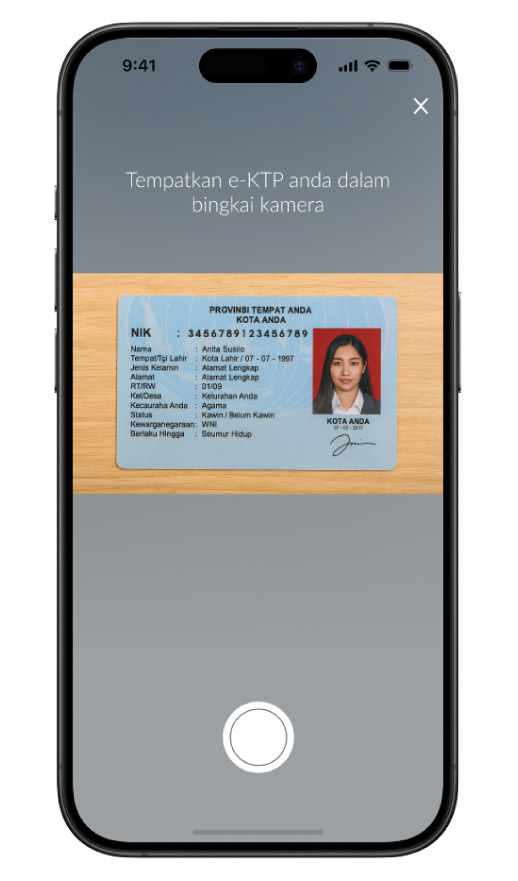
Place e-KTP inside the camera frame. Make sure e-KTP looks clear |
 |
|
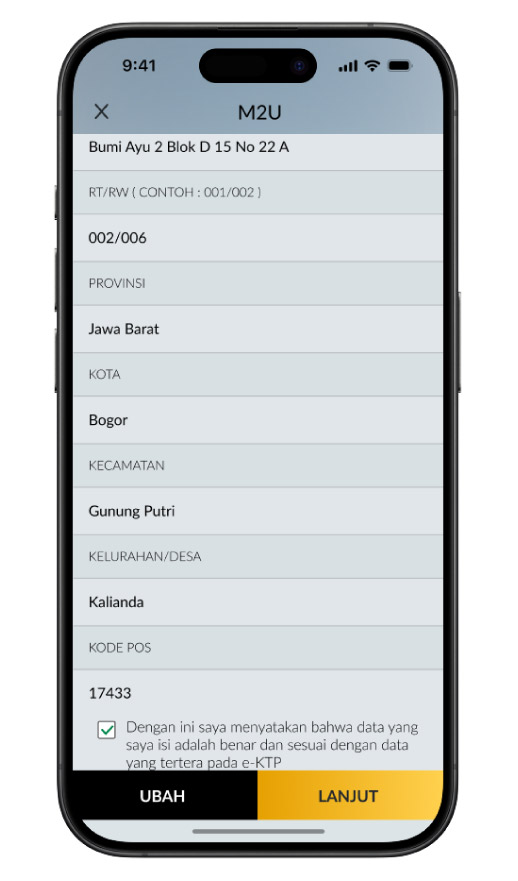
Complete your personal data based on your e-KTP. Make sure all data is correct, tick the confirmation box, then click “Lanjut”. |
|
|
|
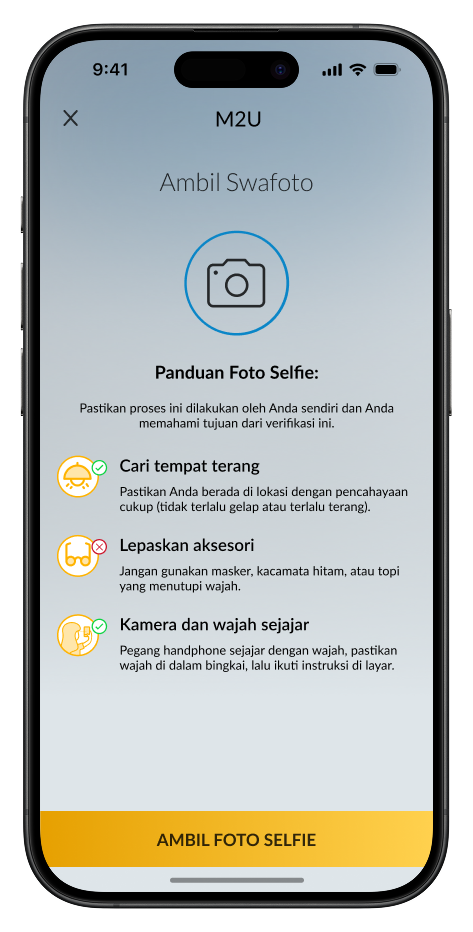
Prepare yourself for selfie verification |
 |
|
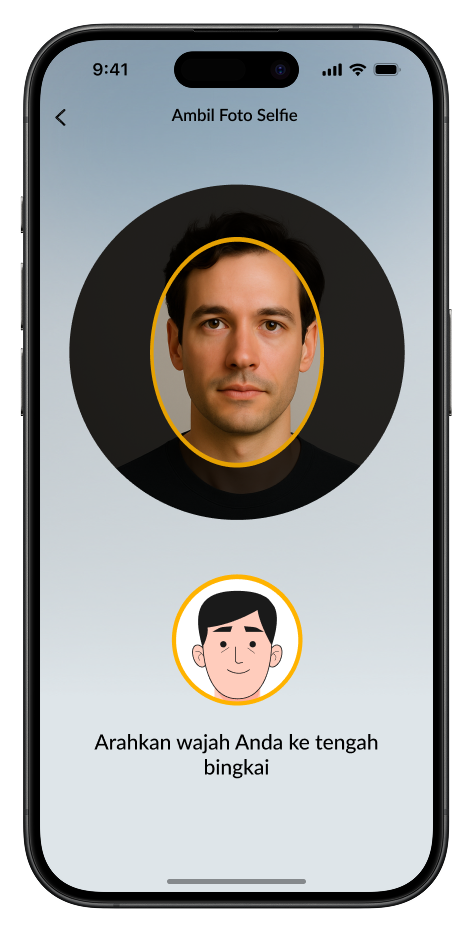
Follow each instruction appeared on the screen, then click “Lanjut” to start the selfie process |
 |
|
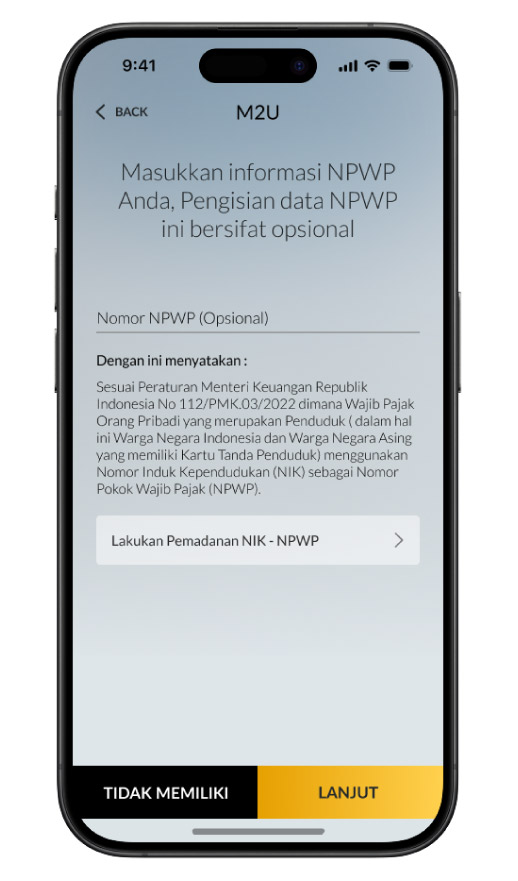
Input NPWP (if there’s any), then click “Lanjut” |
 |
|
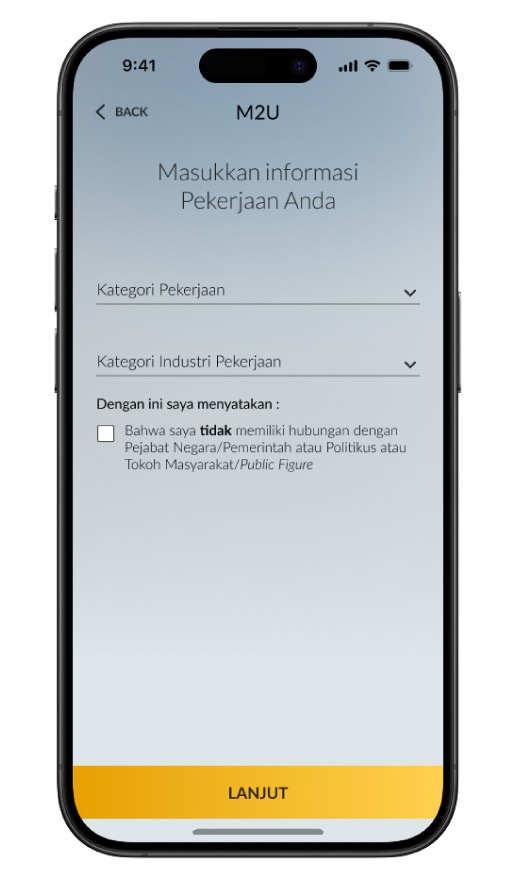
Complete your work information, then click “Lanjut”. |
 |
|
Complete your financial information, then click “Lanjut” |
|
|
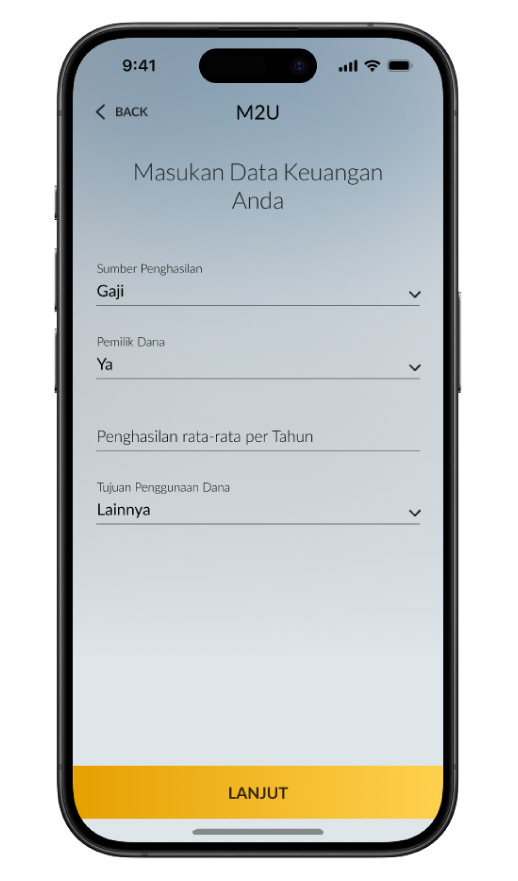
|
Input your residential address, then click “Lanjut” |
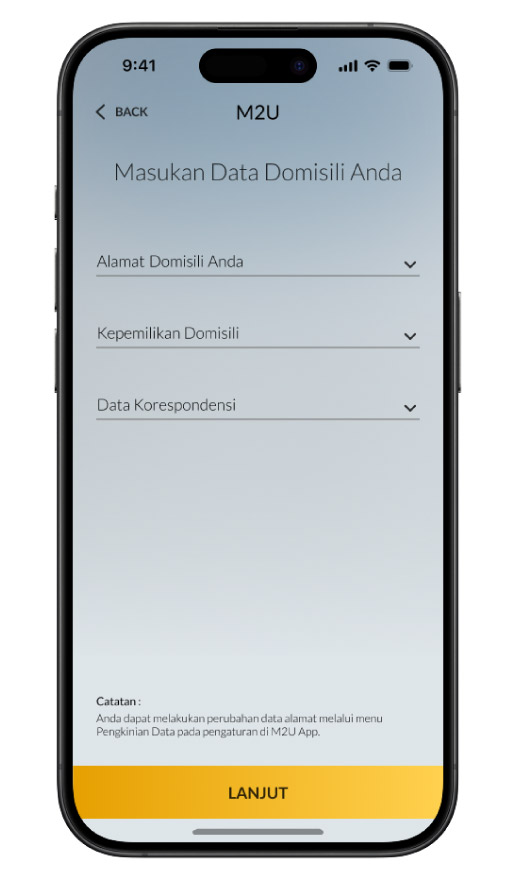 |
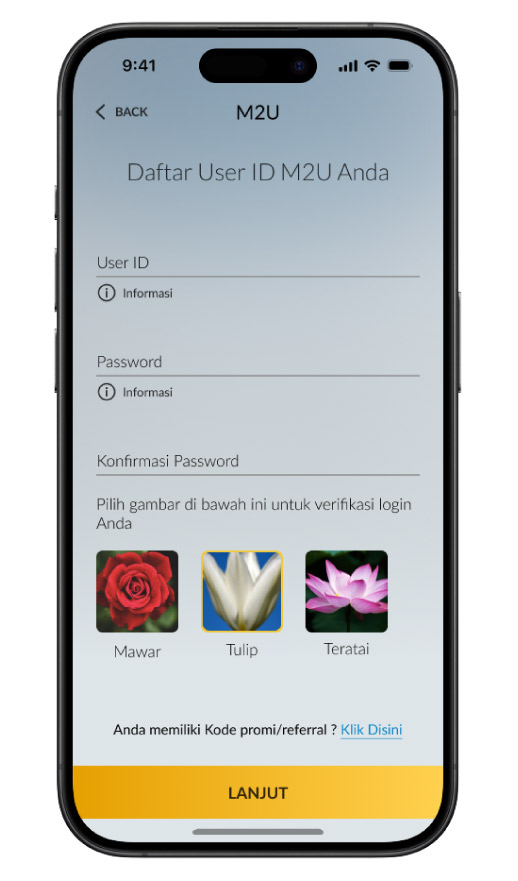
Create a User ID & Password (8–20 characters, alphanumeric, without symbols), and select a security image
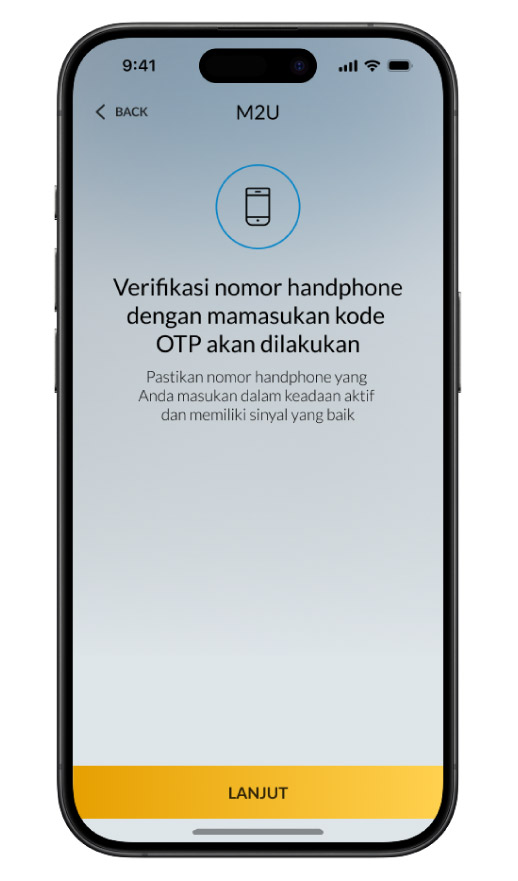
If previous phone number verification failed, redo the SMS OTP verification at this step, then continue
Check again the data you have filled out. Read & understand the terms & conditions for Maybank Tabungan Global Access and M2U ID App. Tick the confirmation box to continue
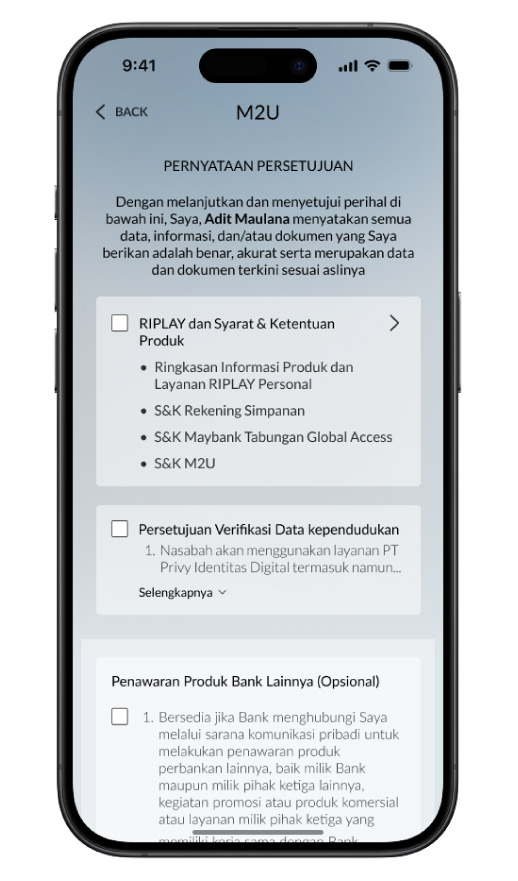
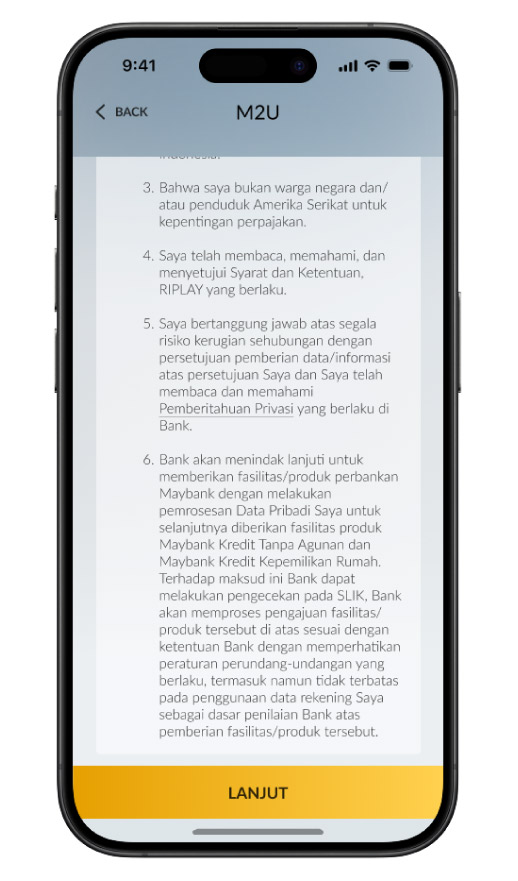
Read & understand the terms & conditions. Tick the Customer’s statement for agreement, then click “Lanjut”
Account opening for Maybank Tabungan Global Access is successful. Activate Goal Saver feature and apply for Maybank Debit Card to start using the service completely.
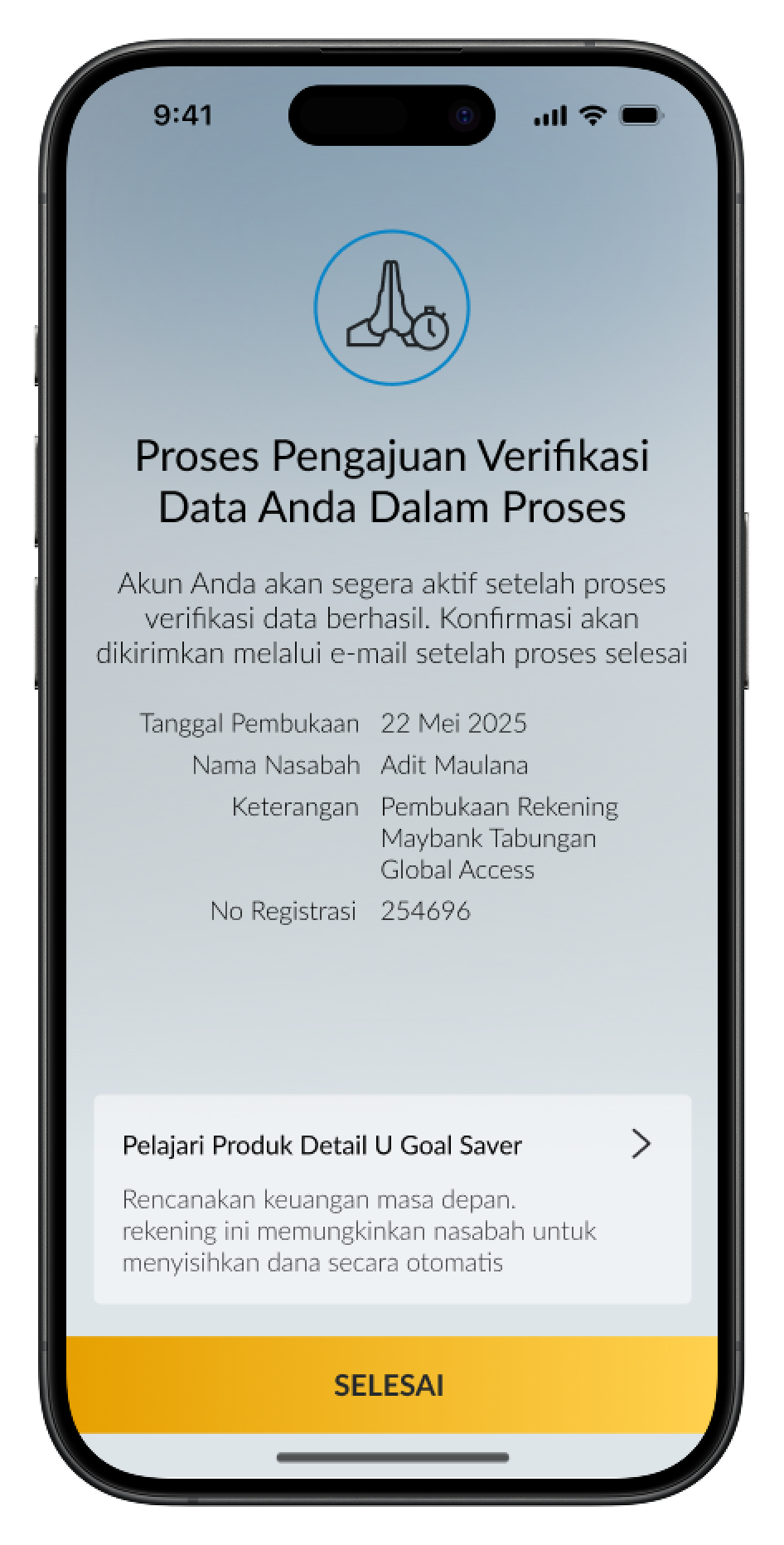
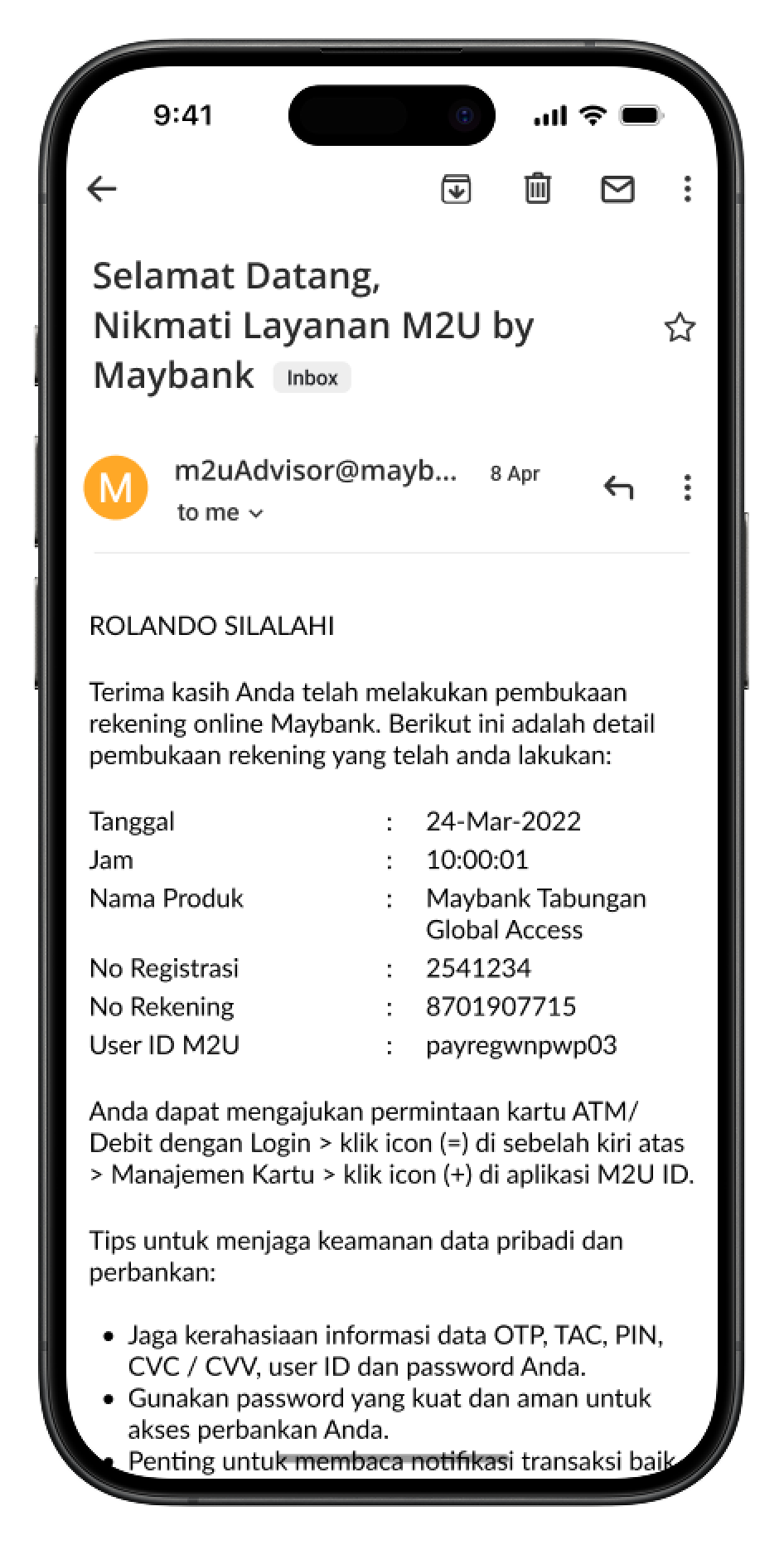
Step 2: Activate Secure2u passcode
After the data verification process is complete and the account opening is successful, immediately activate your Secure2u passcode. Guide to Activating Secure2u after M2U registration
CLICK HERE
Step 3: Access Maybank Global Access Savings Account
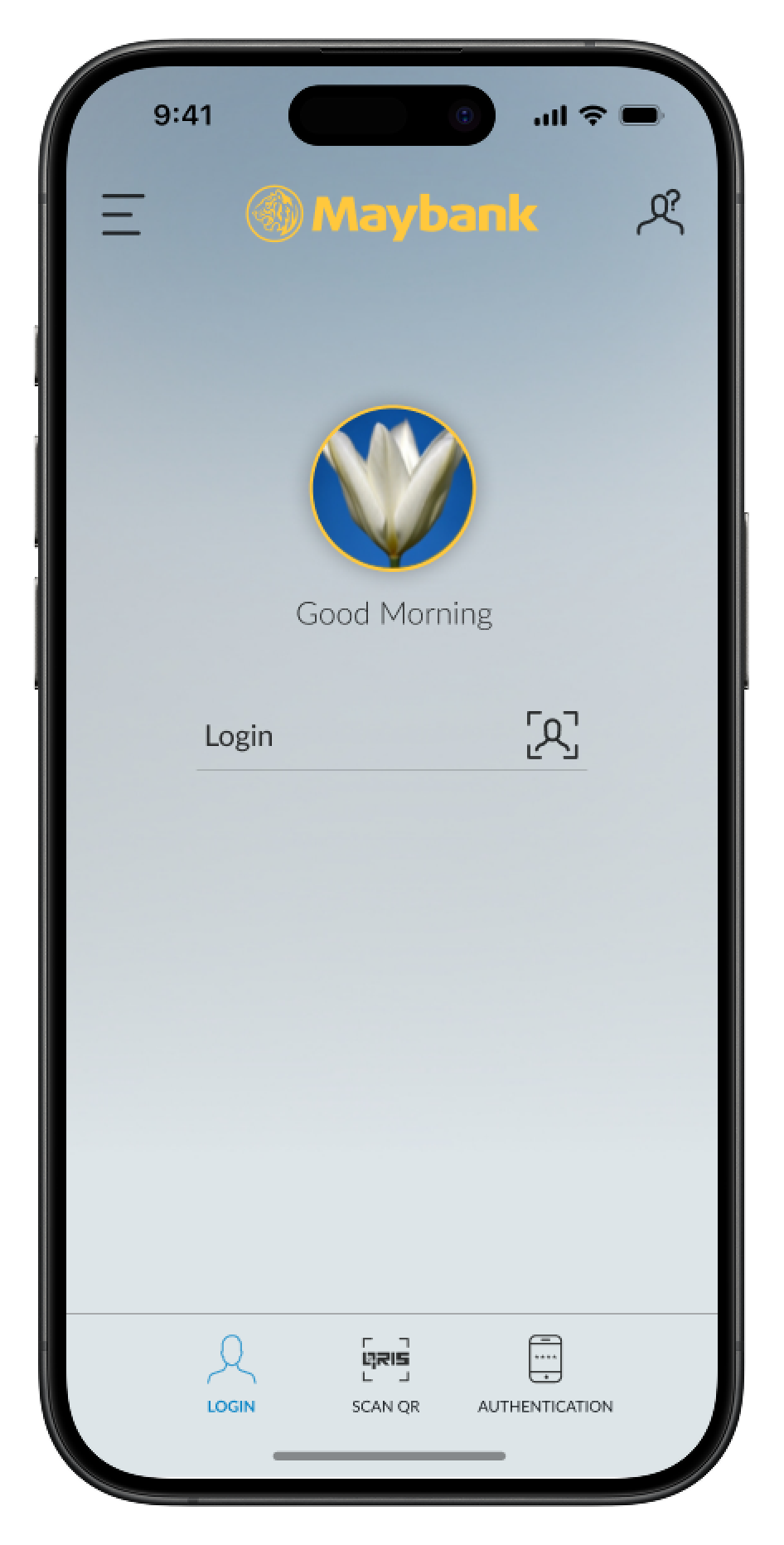
After activating your Secure2u passcode, log back in to access your Maybank Global Access Savings Account and start transacting.
|
Log in to the M2U ID App |
|
|
|
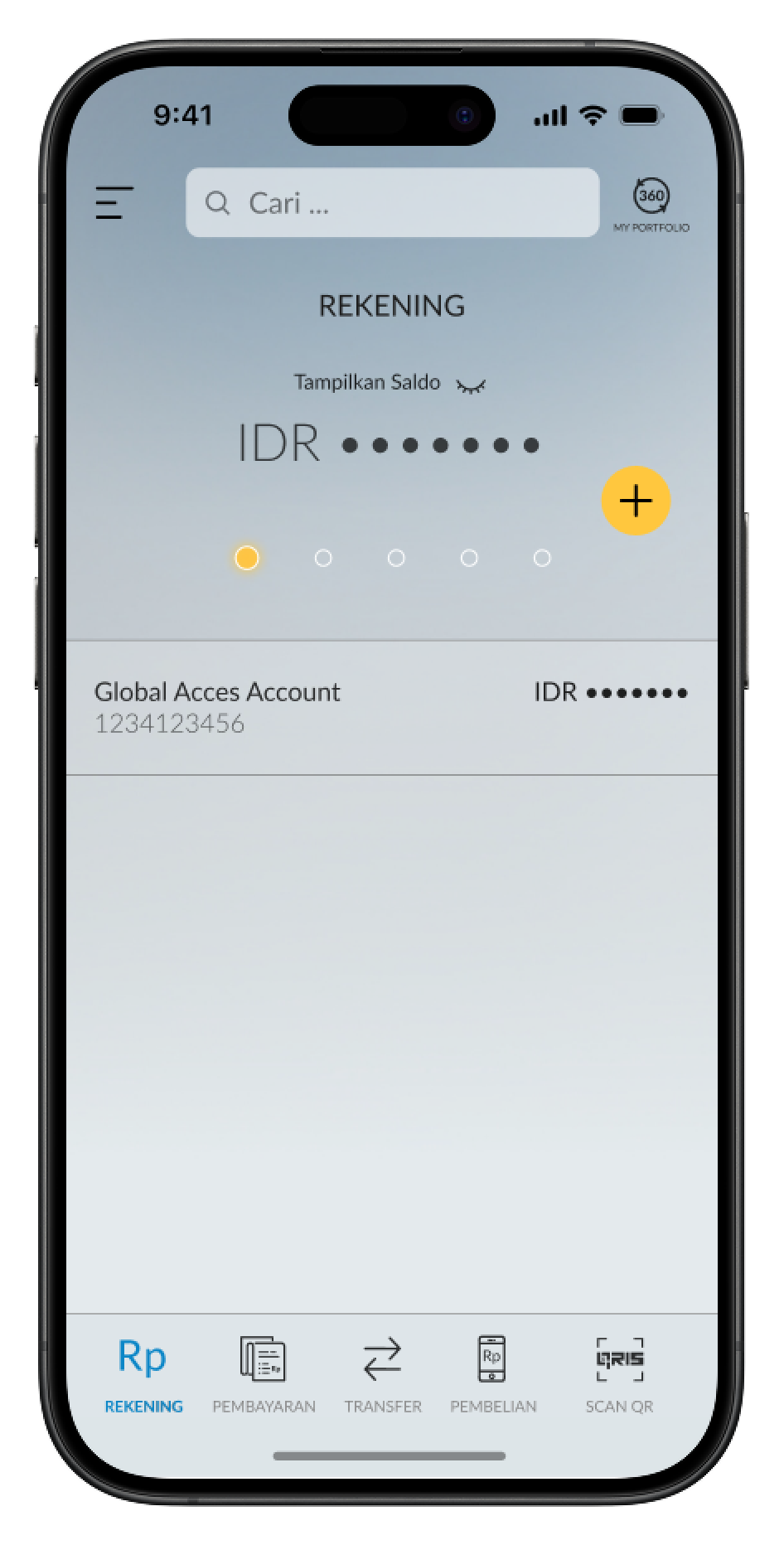
Maybank Global Access Savings Account will appear on the Customer's account display. Select the account to view currency details. The currency directly created is only IDR, while other currencies will be automatically created within an estimated 1–2 working days. |
 |
|
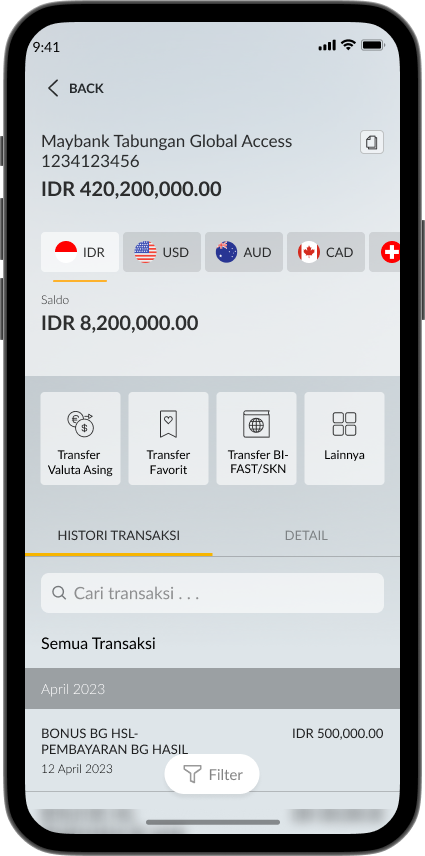
The account details page will appear. Select a currency to make a transaction. |
 |

SHARIA
Halal Indo Expo 2026
Muslim Life Fest 2026
Islamic Banking as a Service (iBaaS)
Sukuk Investment
Sharia Mutual Fund
Shariah Wealth Management
Simpanan Syariah
Shariah Promotion Program
Hajj and Umrah
Zakat, Infaq & Sadaqah
Sharia Business
Property Financing iB
Instant Financing iB
Car Financing iB
Motorcycle Financing iB
Profit Sharing
Shariah Leaders Forum
OTHERS
Customer Support
Japan Desk
KPR Maybank Payroll
Promotion
Customer Support
Visit Malaysia
News & Announcements
KPM Privilege
Locate Us
Refer a Friend
Fees & Charges
Rates Information
Maybank Basic Credit Interest Rate
Customer Education
External Link
Security Privacy and Policy
Social Media Community Guidelines


Select Country






Corporate Online Services