



Applying for Maybank KTA is easier and more convenient through the M2U ID App, anytime and right at your fingertips.
How to applying for a Maybank Personal Loan through the M2U ID App.
|
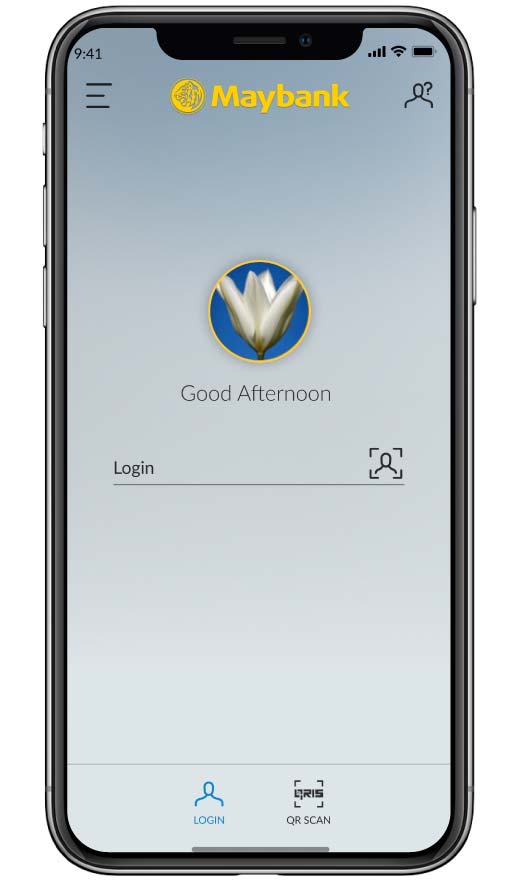
Log in M2U ID App
|
 |
|
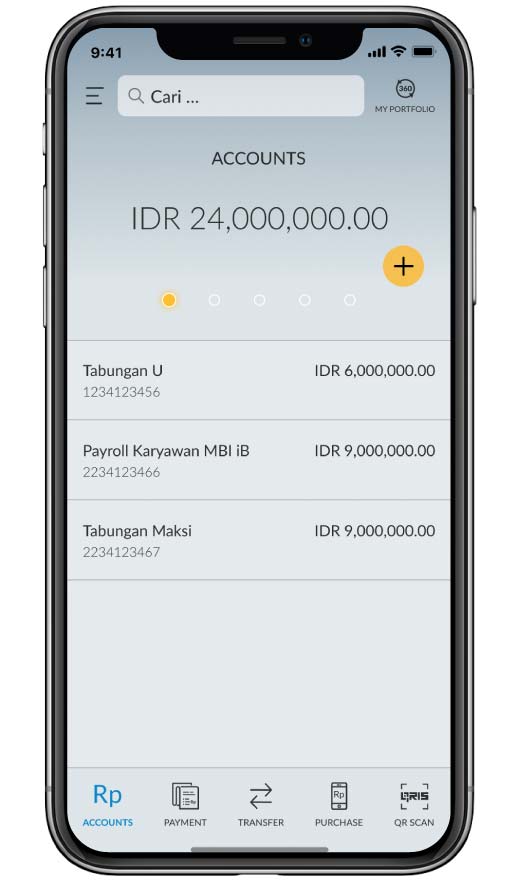
Select the menu iconor click “+” or swipe on the account dashboard
|
 |
|
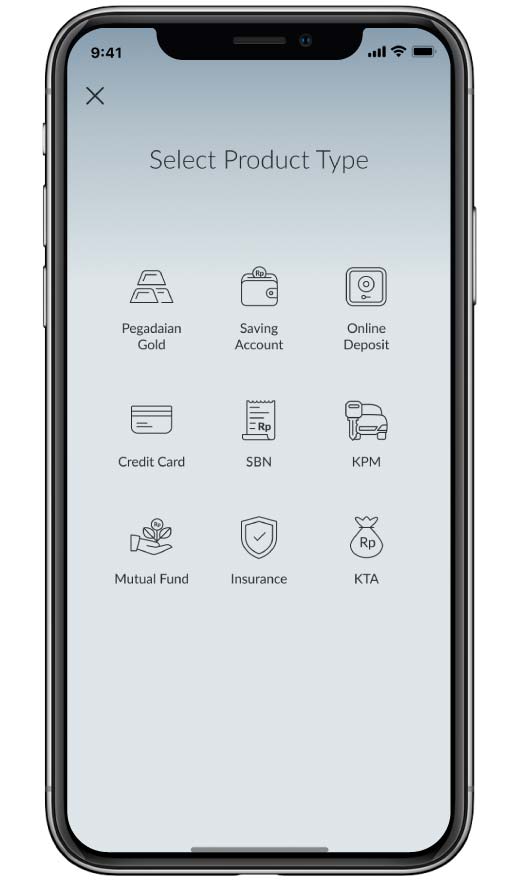
Select KTA
|
|
|
|
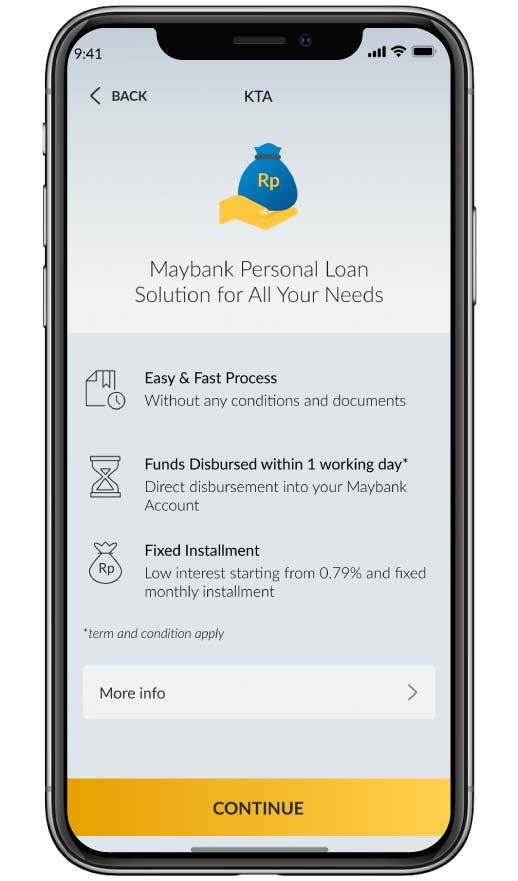
Read the Maybank KTA product information,then click “continue”
|
 |
|
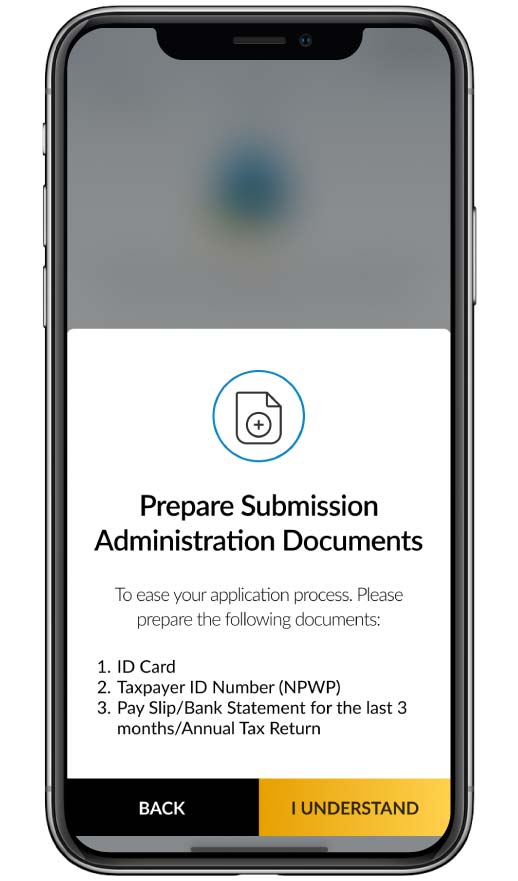
Prepayer your document for Maybank KTA application such as : ID Card,Tax ID Card, upload income documents/pay slips/bank statements for the last 3 months/SPT
|
 |
|
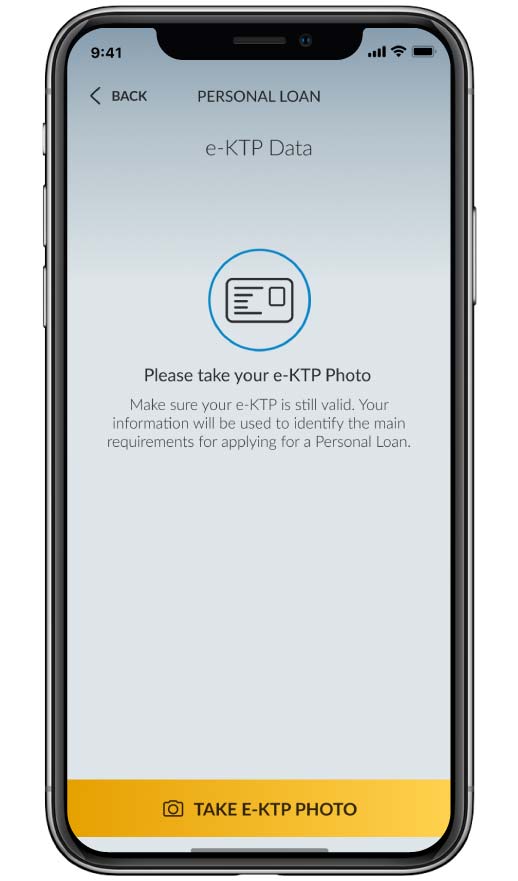
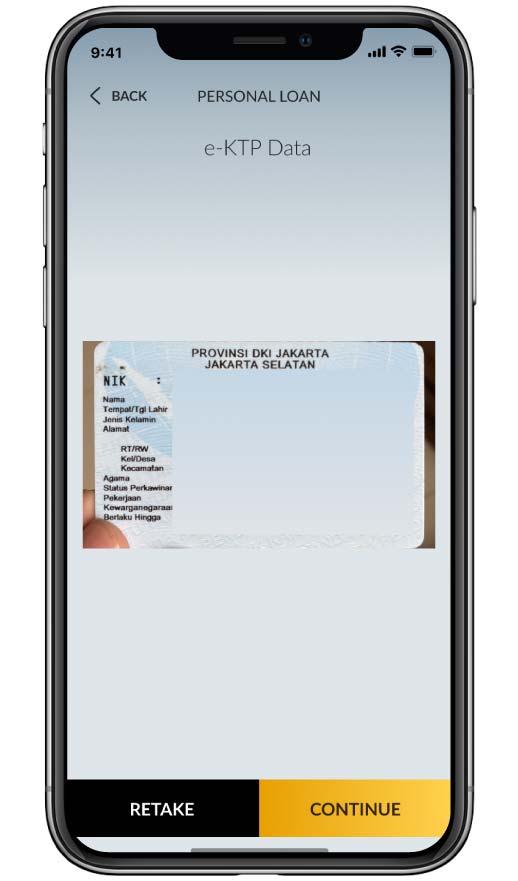
Take a photo of your ID Card
|
 |
|
Click “Next”
|
 |
|
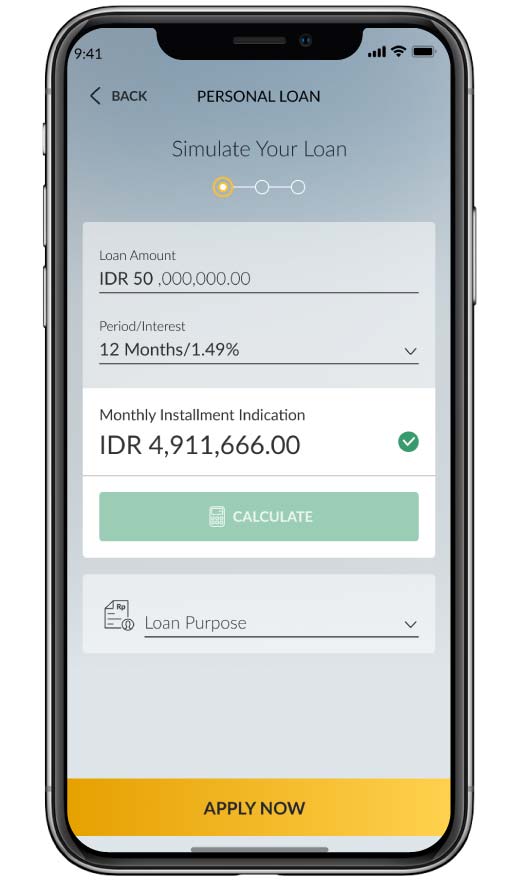
You can djust the loan amount limit and loan period that you desired. Click “Apply Now”
|
 |
|
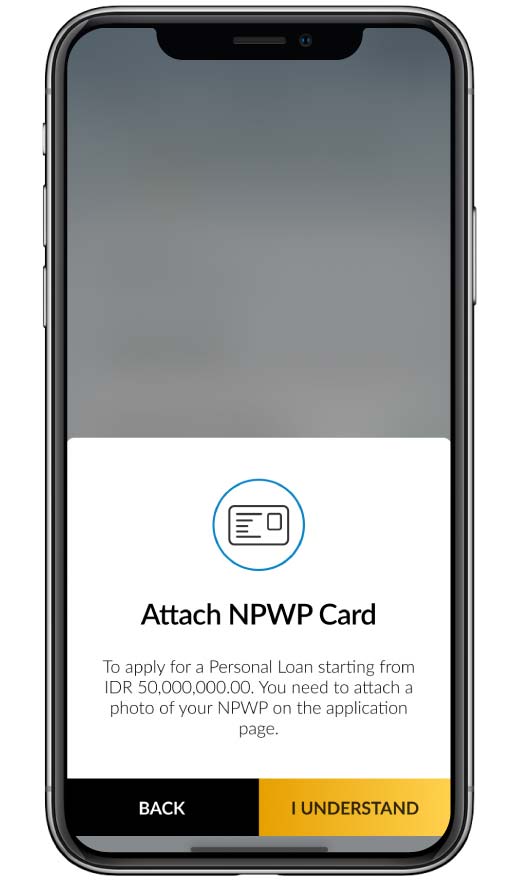
If the loan nominal <50 million, you must attach your tax id card
|
 |
|
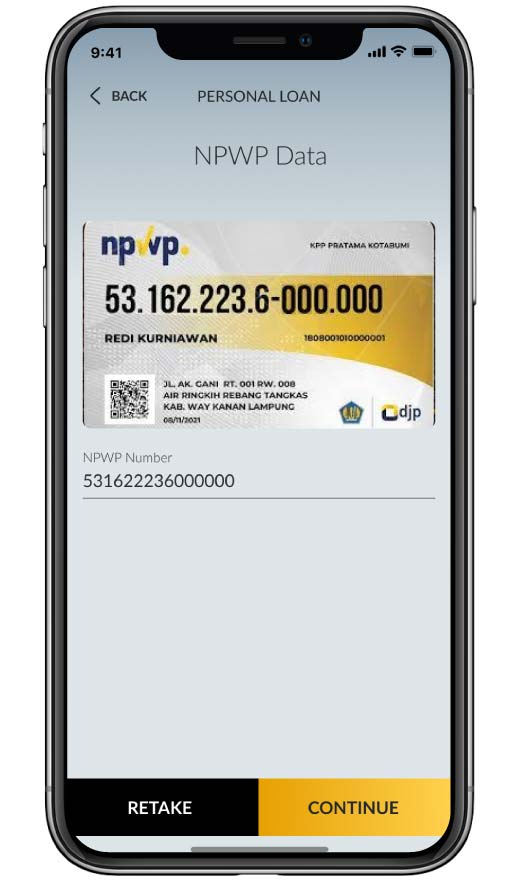
Take a photo and input your tax id card number
|
|
 |
|
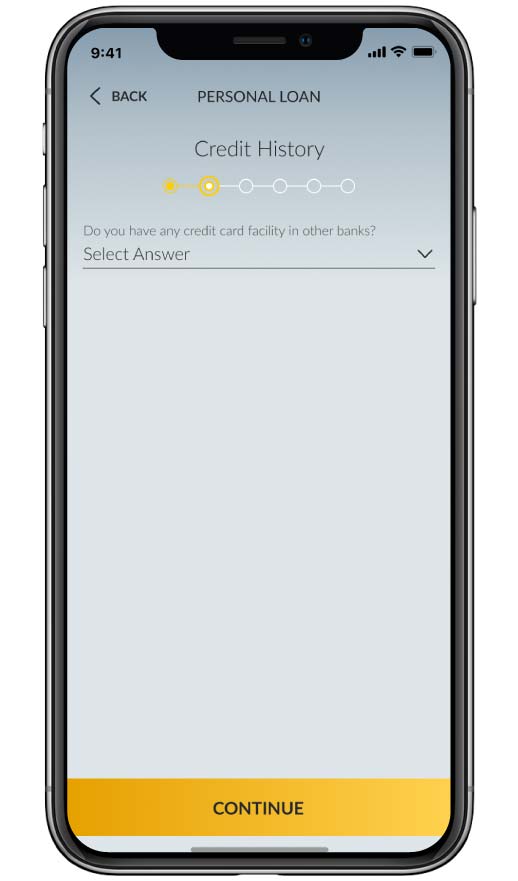
If the customer’s bank month is < 3 months, You fills in the information about ownership of another bank’s credit card facility
|
|
 |
|
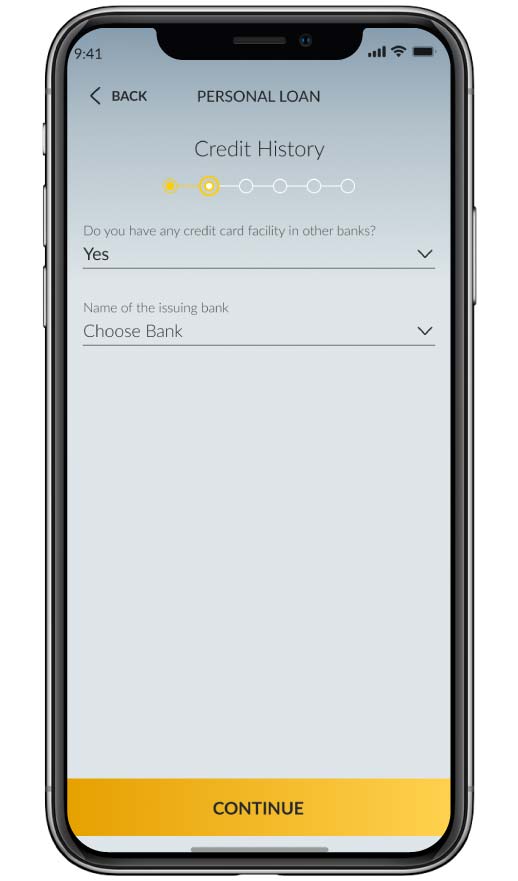
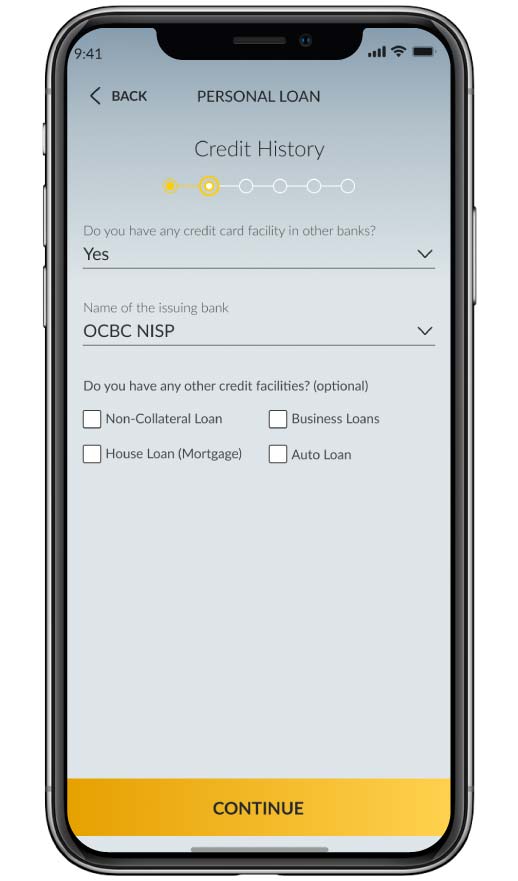
Input information related to credit card ownership from another bank, then click “Continue” :
|
|
 |
|
Fills in the details information about another bank’s credit card facility
|
 |
|
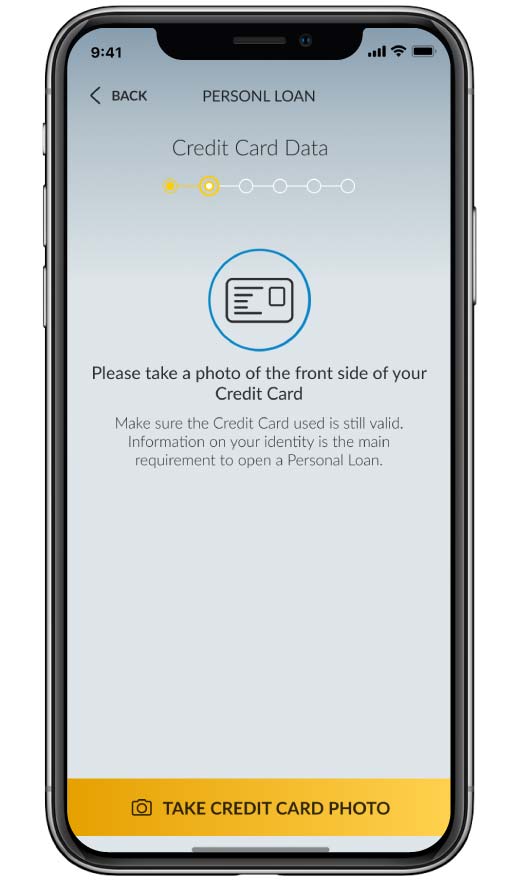
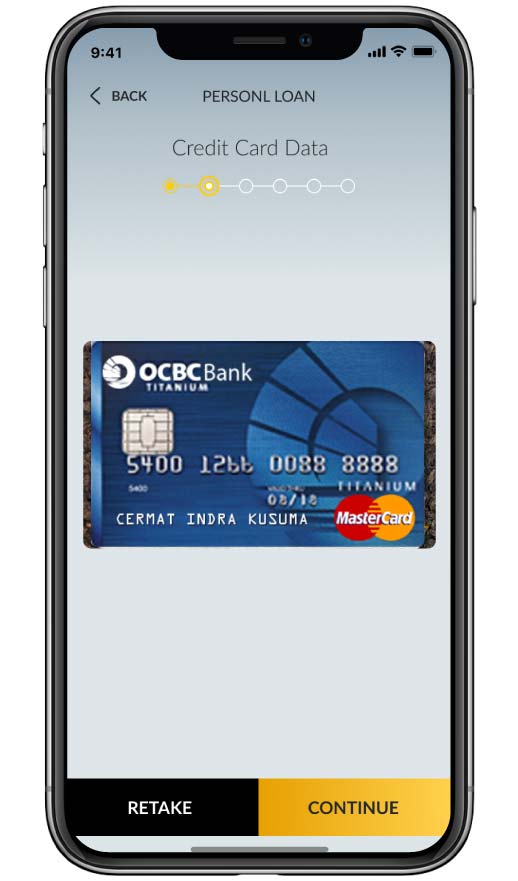
Take a photo of the credit card
|
 |
|
Click “Next”
|
 |
|
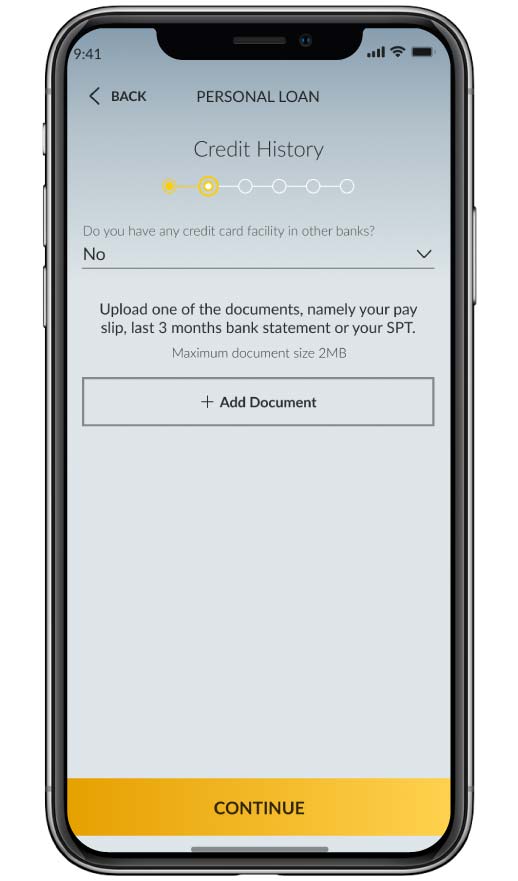
If you don’t have credit card from another bank, upload income documents/pay slips/bank statements for the last 3 months/SPT
|
 |
|
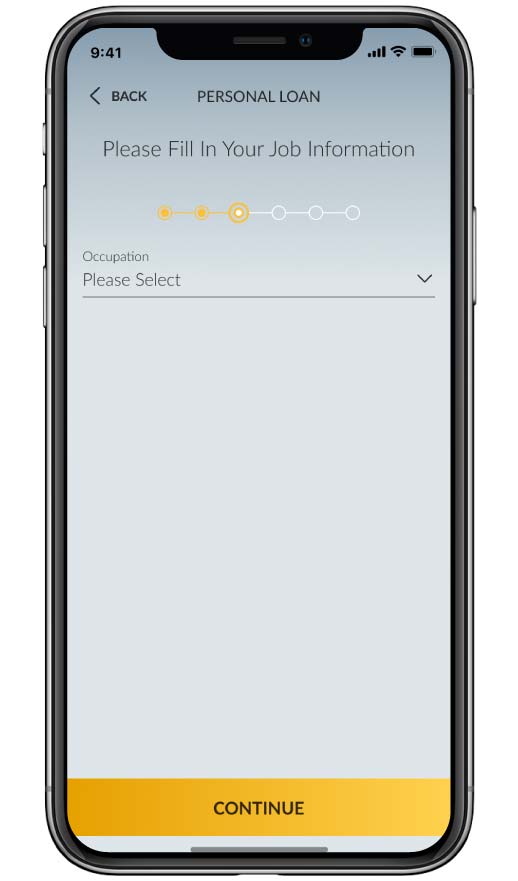
Fill in the job information then click “Continue” (if You choose housewife/student/retiree category then there’s no need to input the related information
|
 |
|
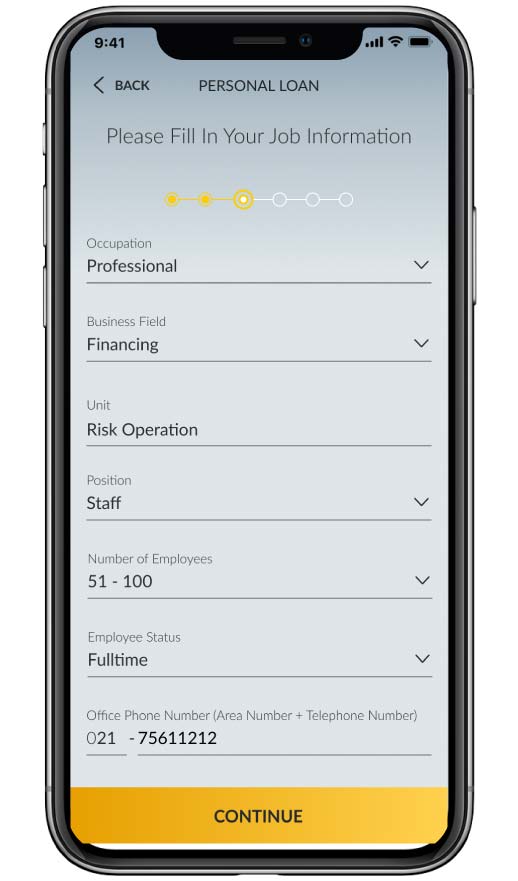
Complete the job information, Click “Next”
|
 |
|
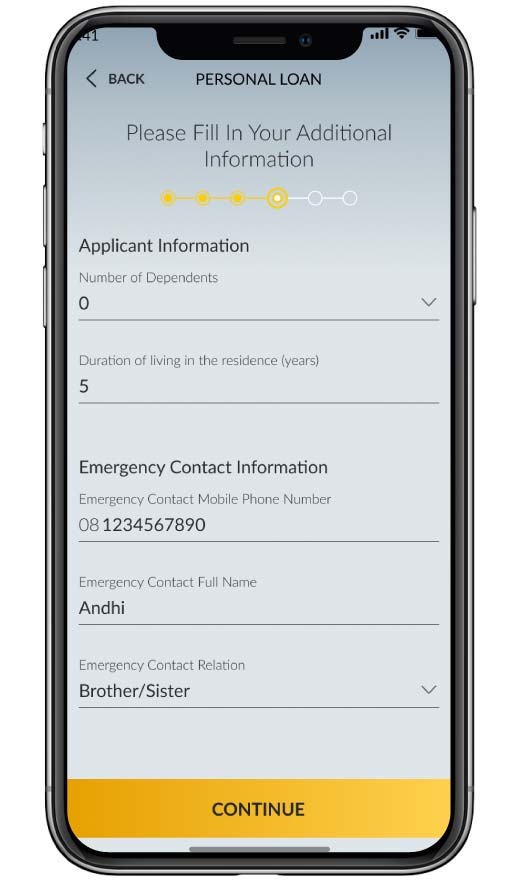
Fill in the additional information. Then click “next”
|
 |
|
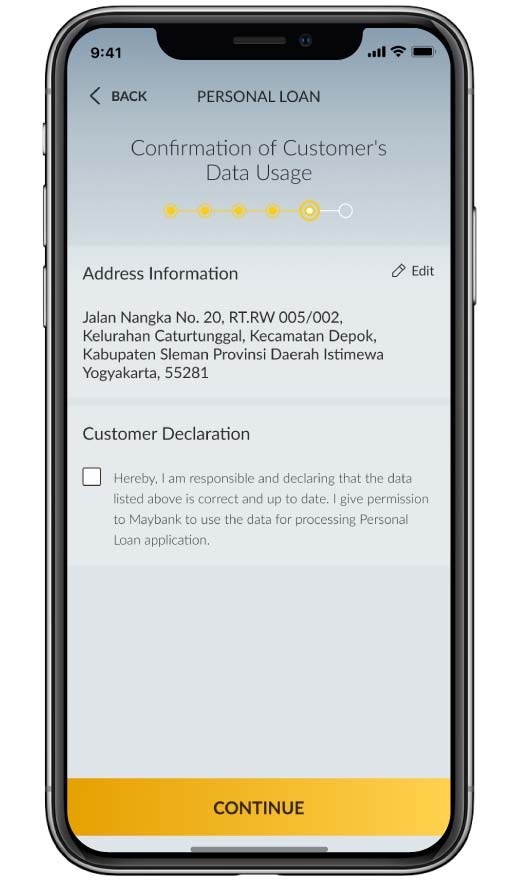
Fill in the customer’s address information. Then click “next”
|
 |
|
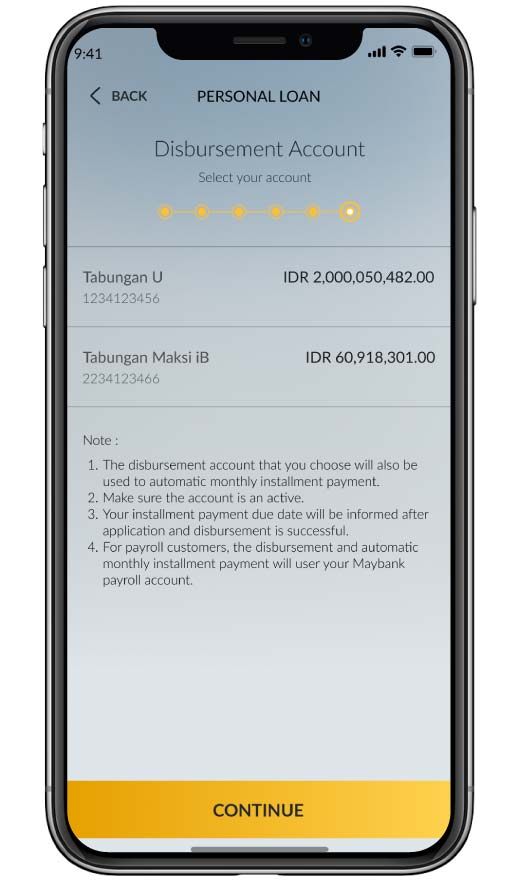
Choose the account number to be used for disbursement of Maybank Personal Loan funds
|
 |
|
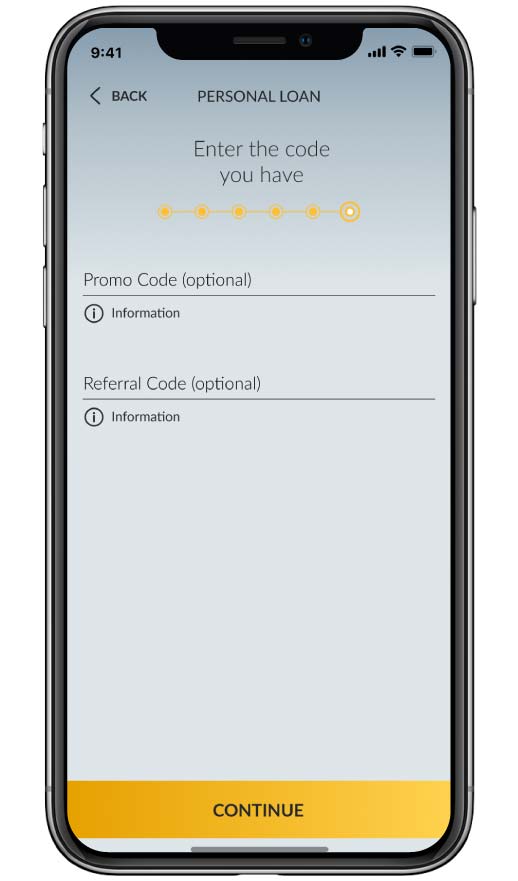
Input referral/promo code (optional, if any). Click “next”
|
 |
|
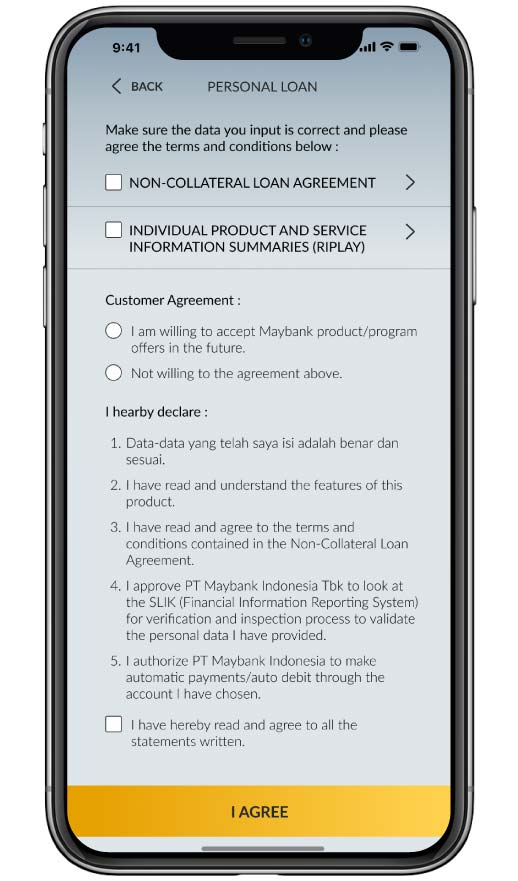
Click checkbox to agree to the Maybank Personal Loan application agreement
|
 |
|
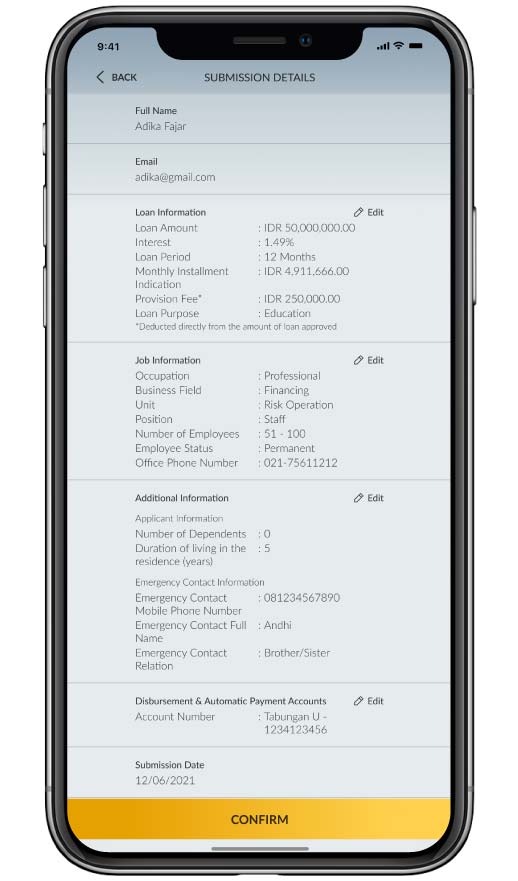
Check your submission details, If it’s correct, click “confirm”
|
 |
|
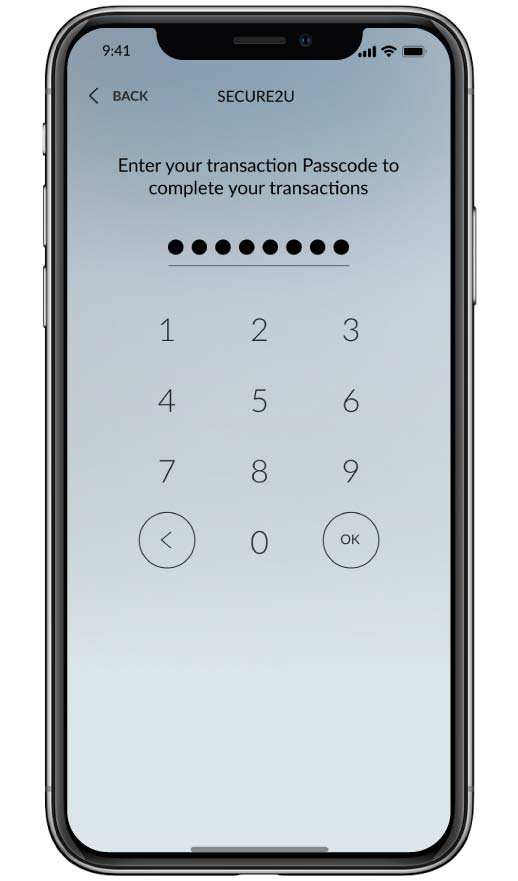
Input passcode Secure2u
|
 |
|
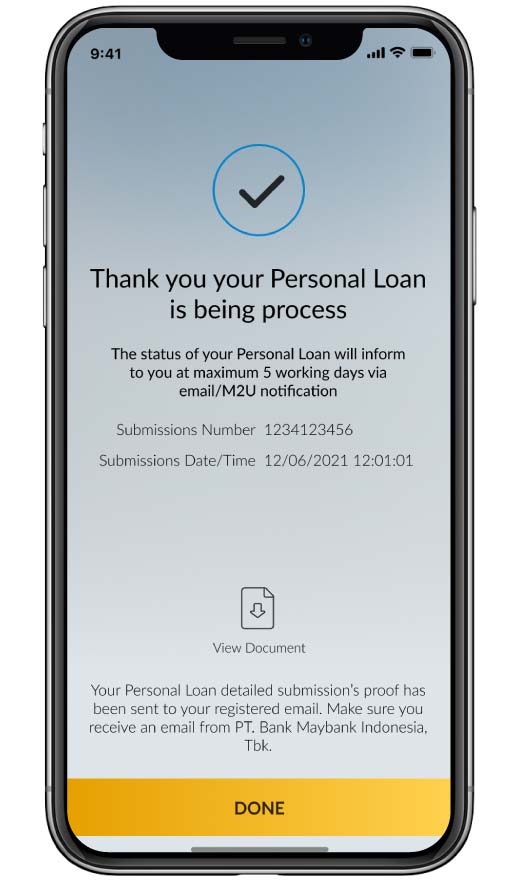
Your Maybank Personal Loan application has been completed.
|
 |
How to Apply Maybank KTA for invitee Customer.
|
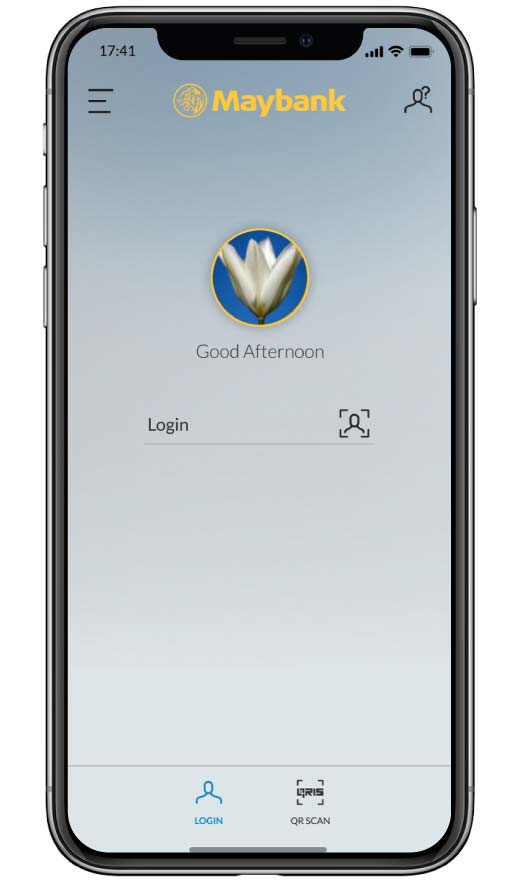
Login to your M2U ID App |
 |
|
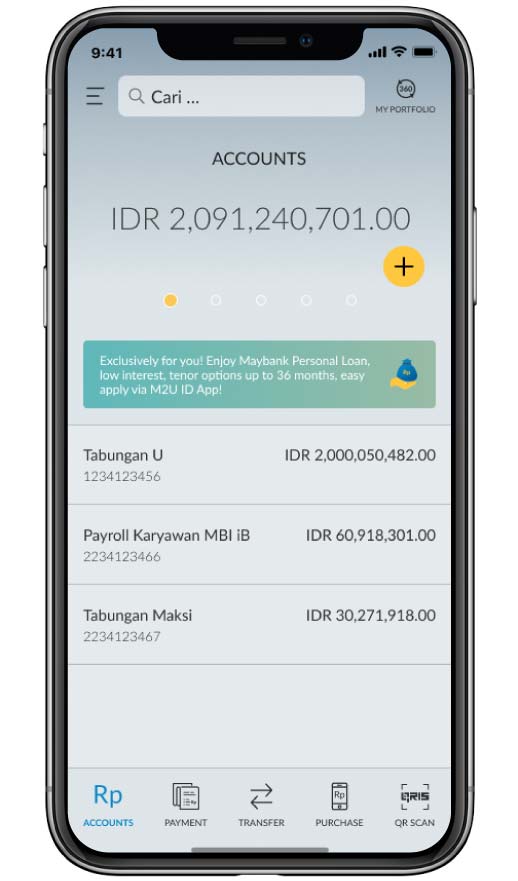
For Customers who invited, they will receive an invitation notification on the account dashboard page or click “+” then pick Maybank Personal Loan product |
 |
|
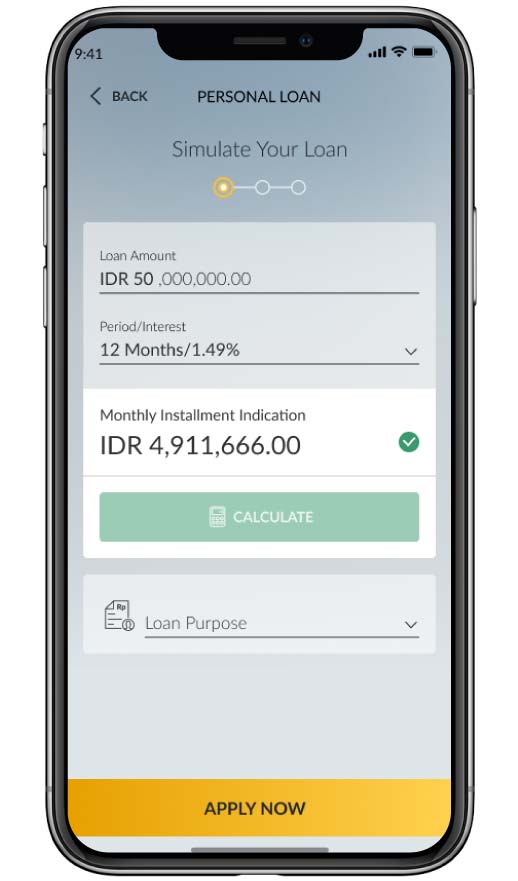
You can adjust the loan amount limit and loan period that you desired. Click “Apply Now” |
 |
|
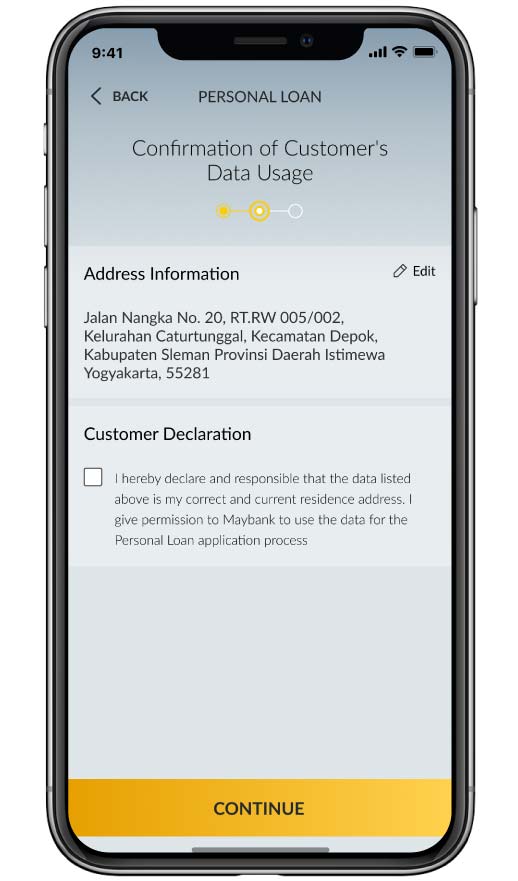
Fill in the customer’s address information. Then click “next” |
 |
|
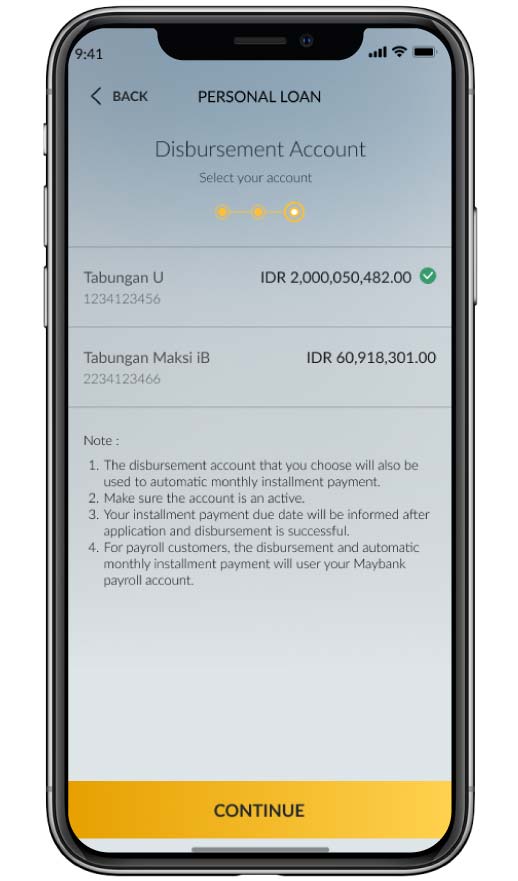
Choose the account number to be used for disbursement of Maybank Personal Loan funds |
 |
|
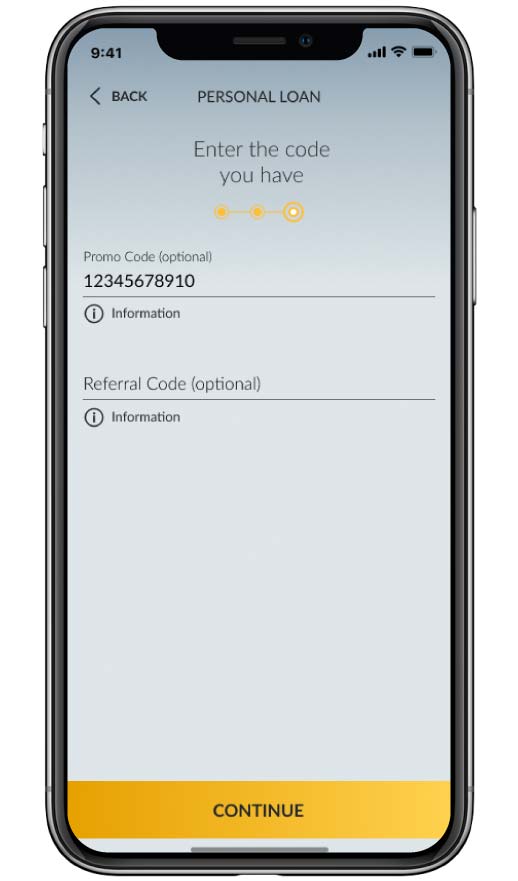
Input referral/promo code (optional, if any). Click “next” |
 |
|
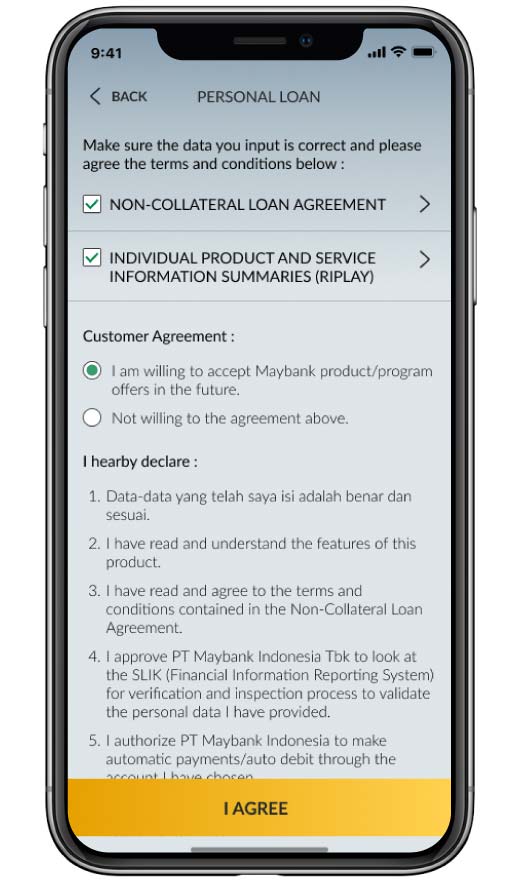
Click checkbox to agree to the Maybank Personal Loan application agreement |
 |
|
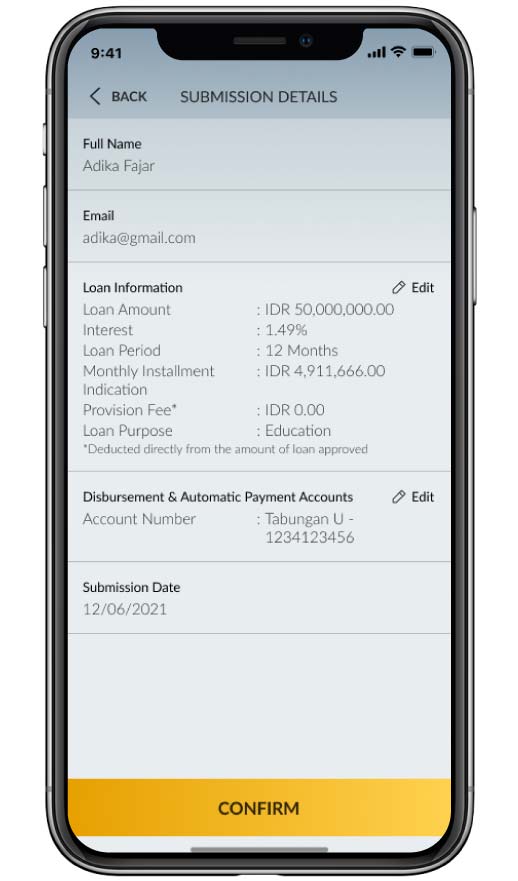
Check your submission details, If it’s correct, click “confirm” |
 |
|
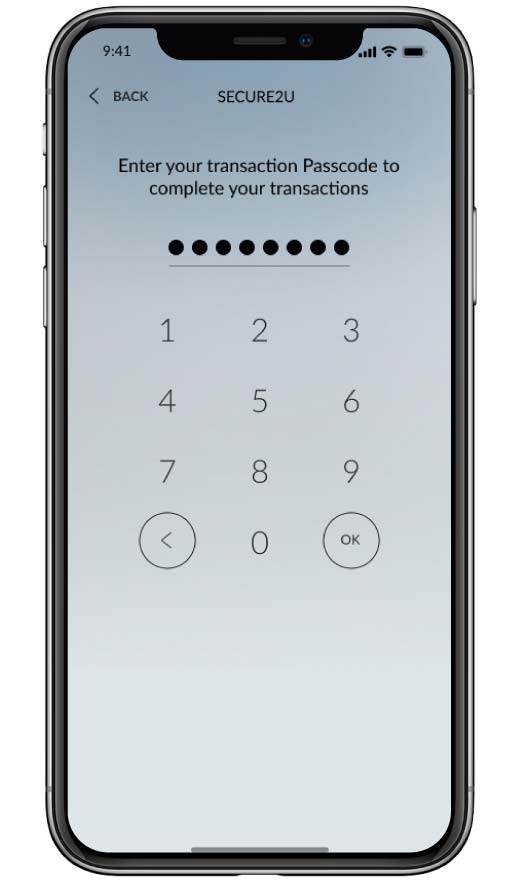
Input passcode Secure2u |
 |
|
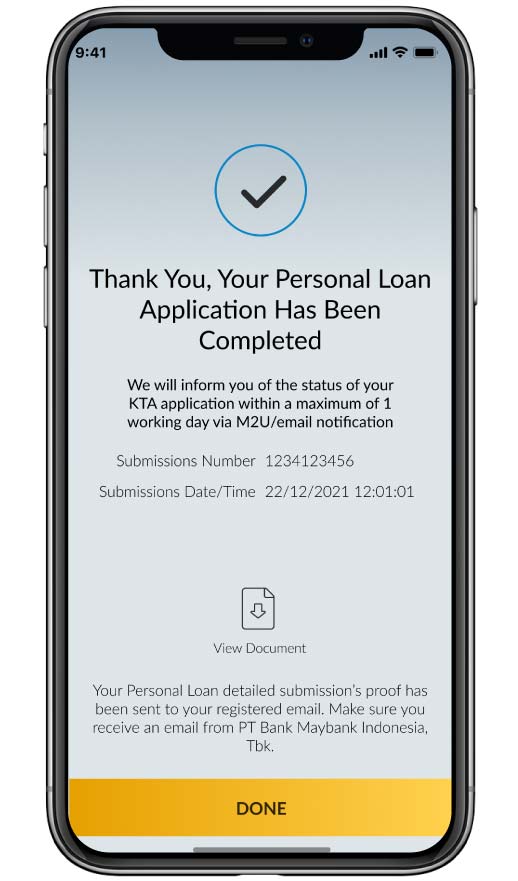
Your Maybank Personal Loan application has been completed. |
 |
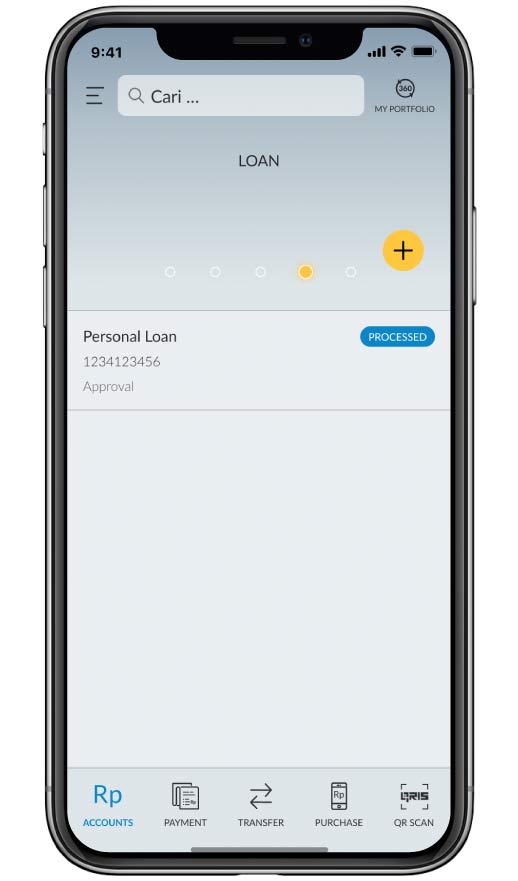
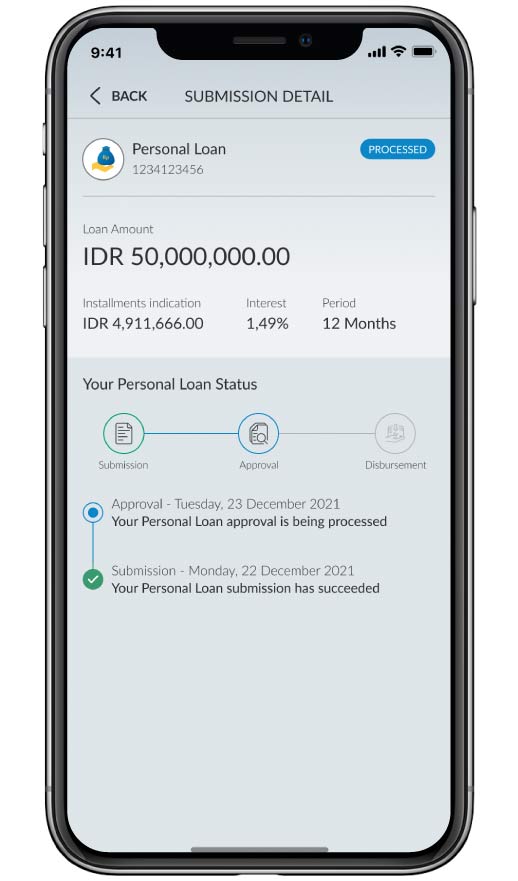
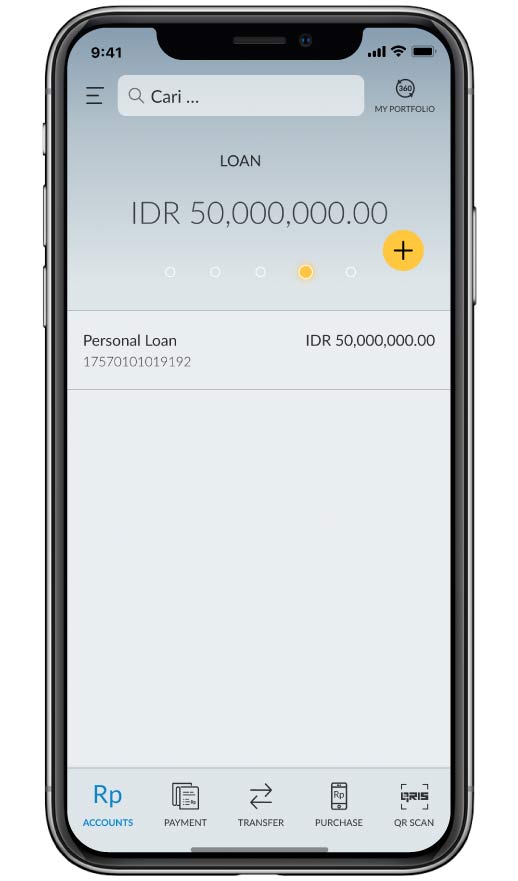
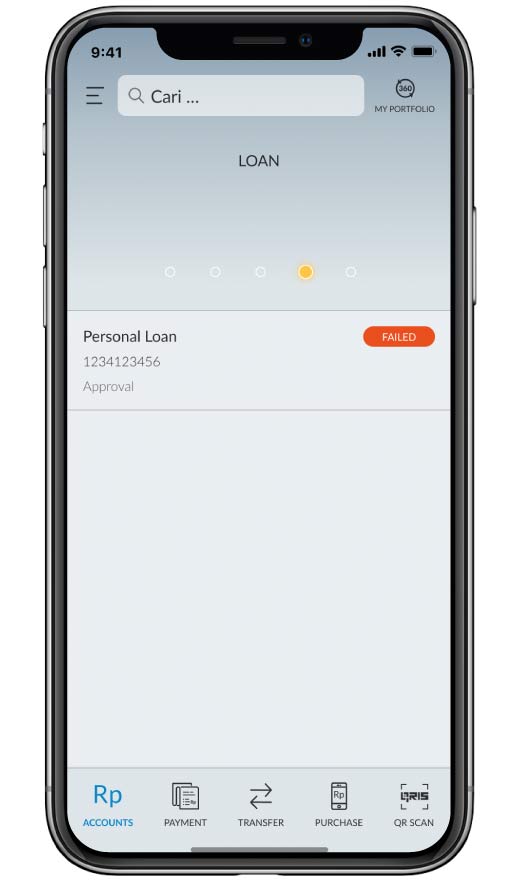
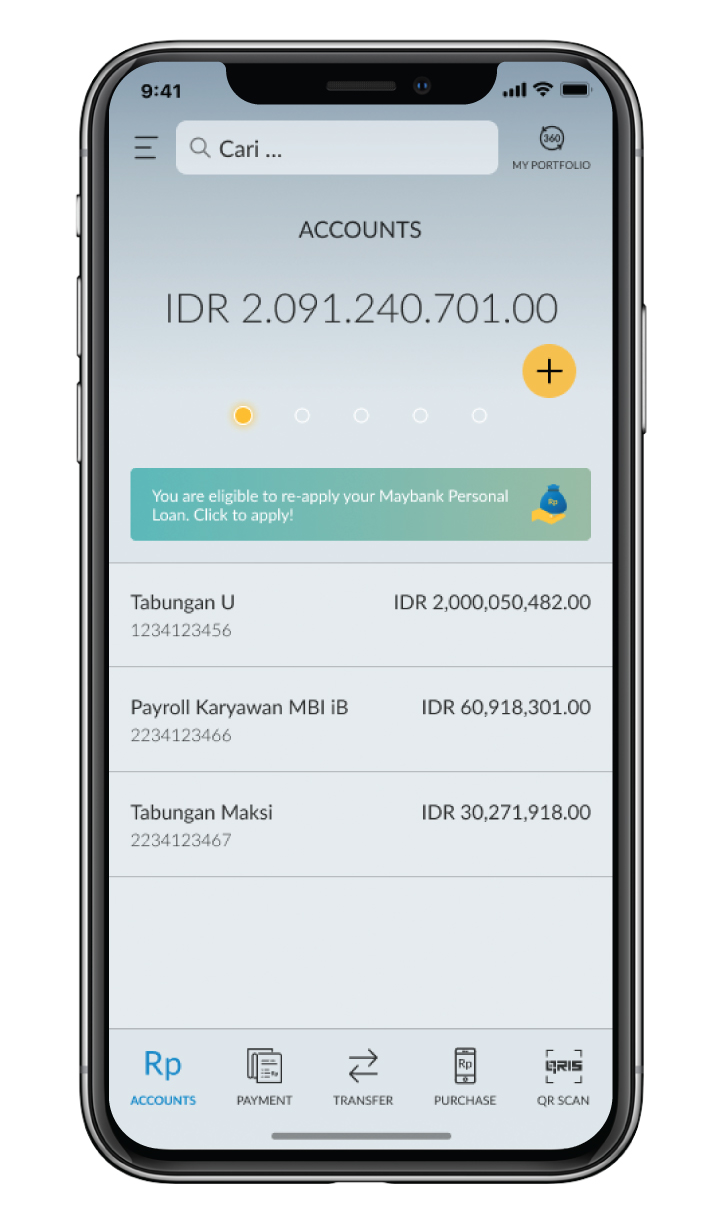
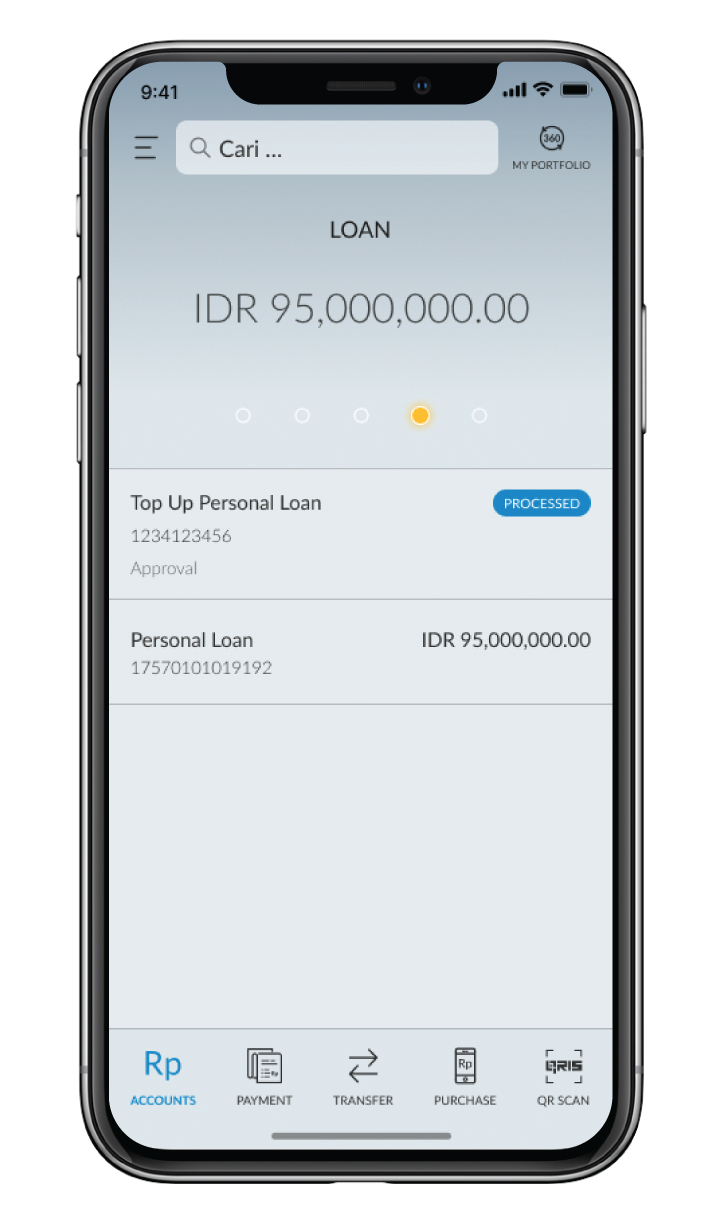
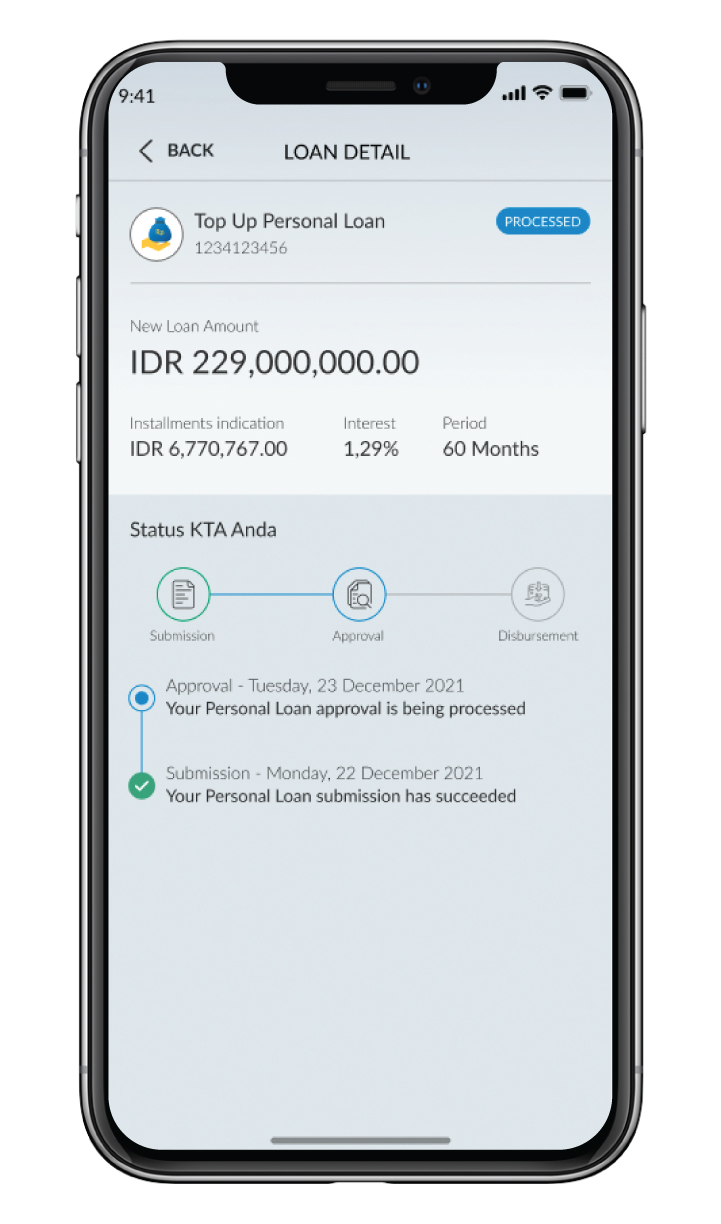
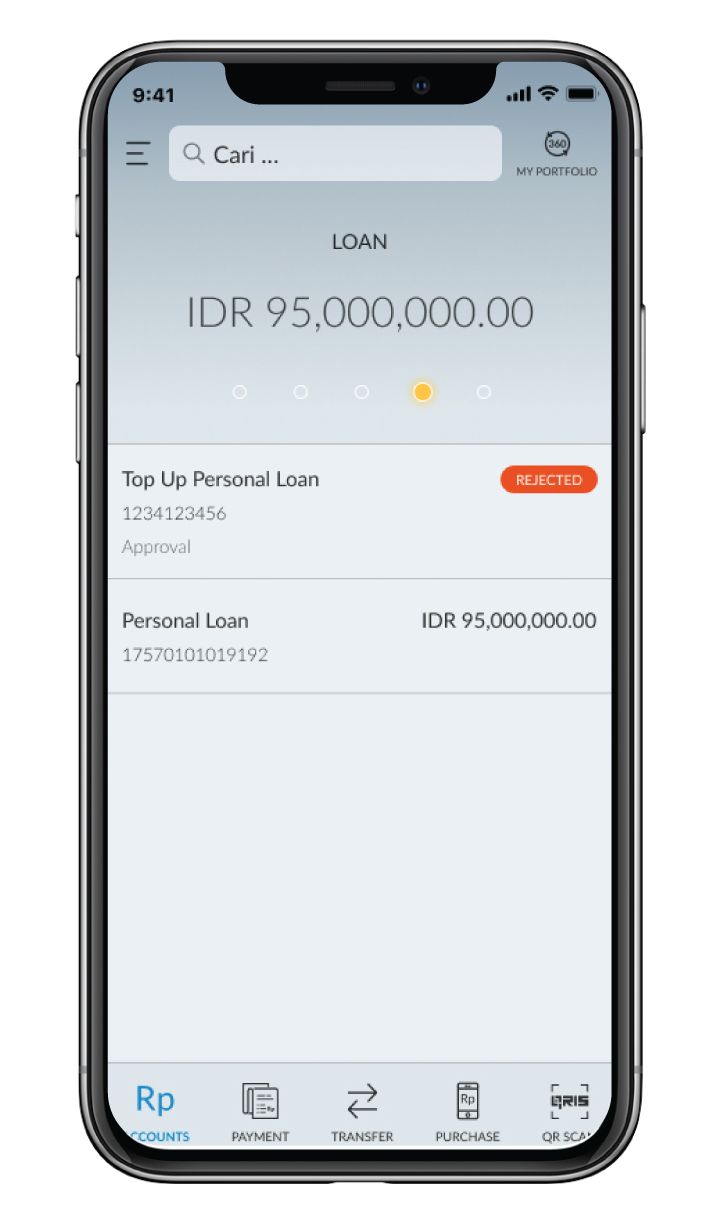
How to top up Maybank KTA
|
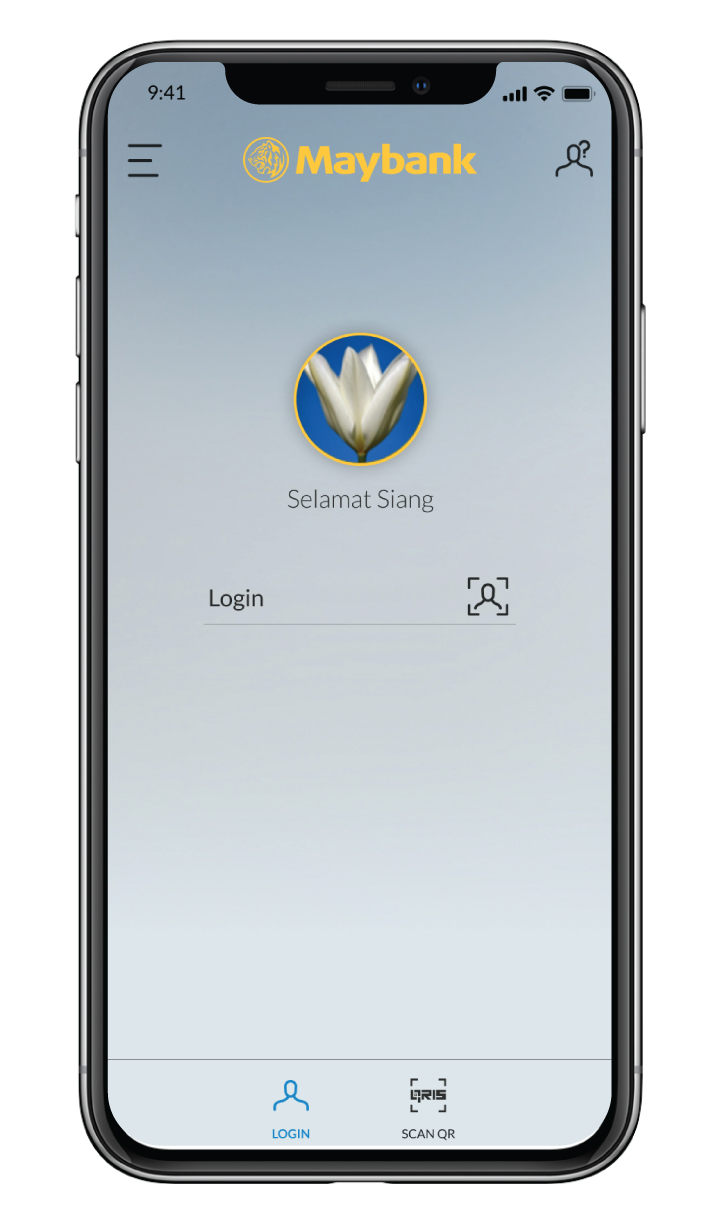
Log in M2U ID App
|
|
 |
|
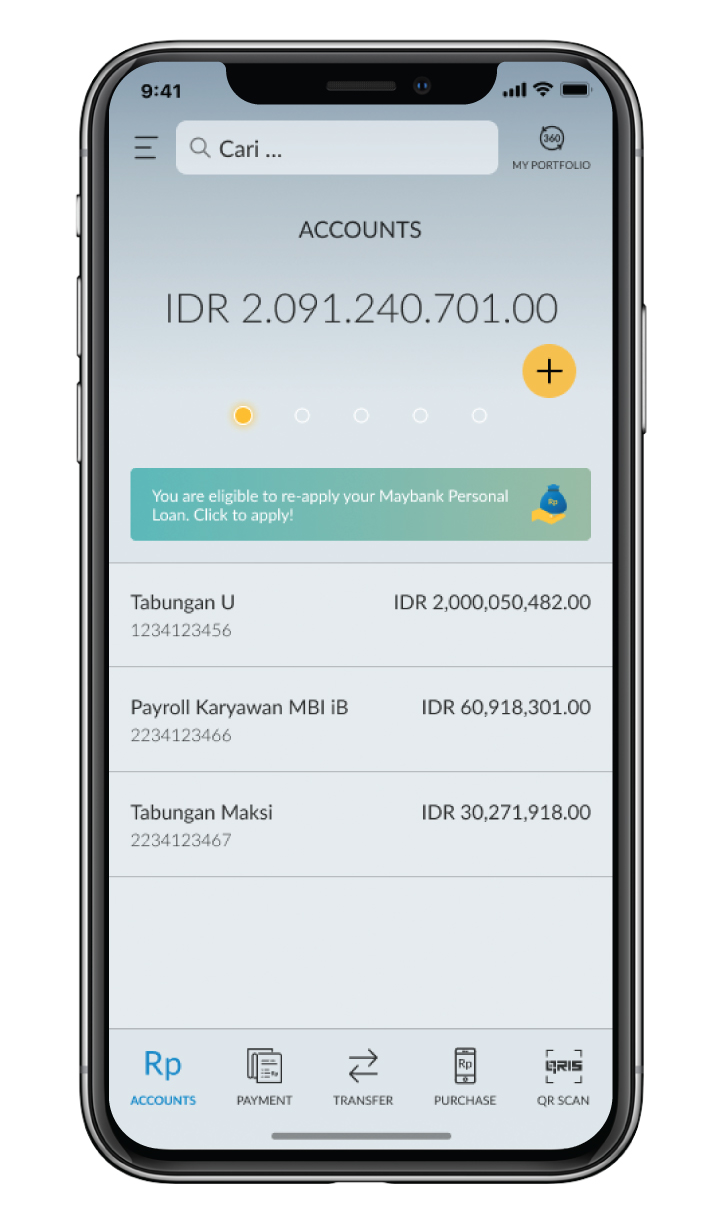
Increase your Maybank Personal Loan limit by:
|
|
 |
|
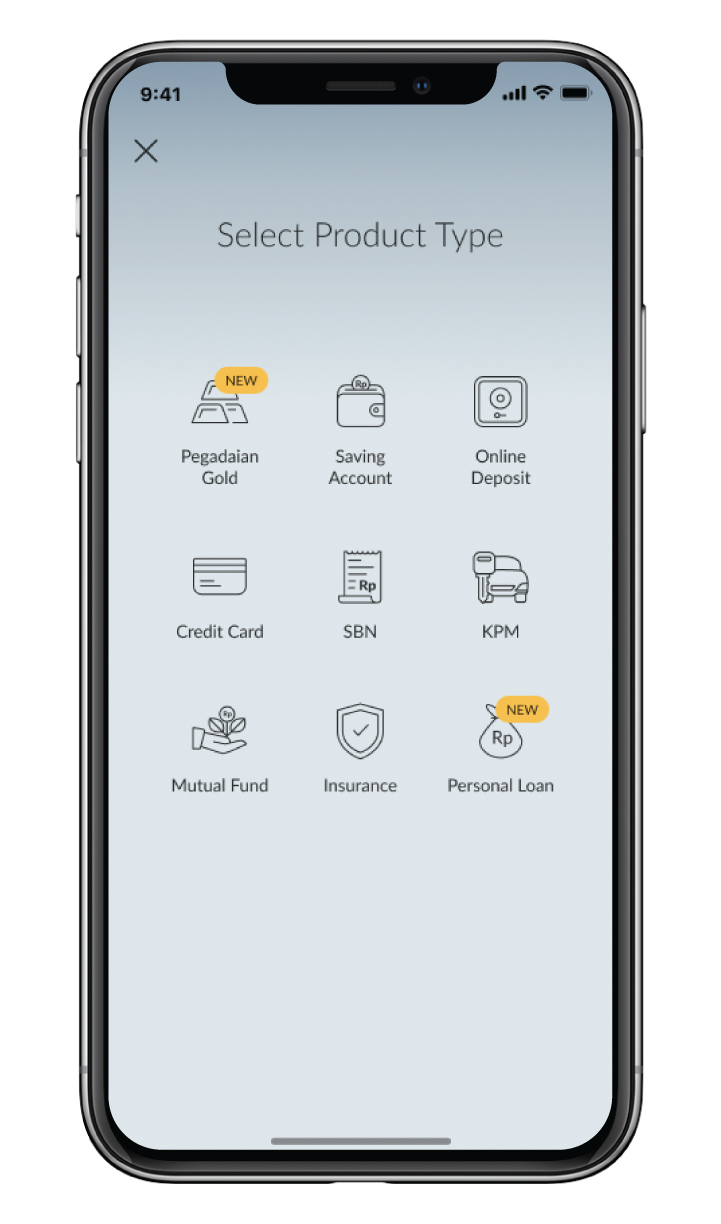
Select KTA
|
|
|
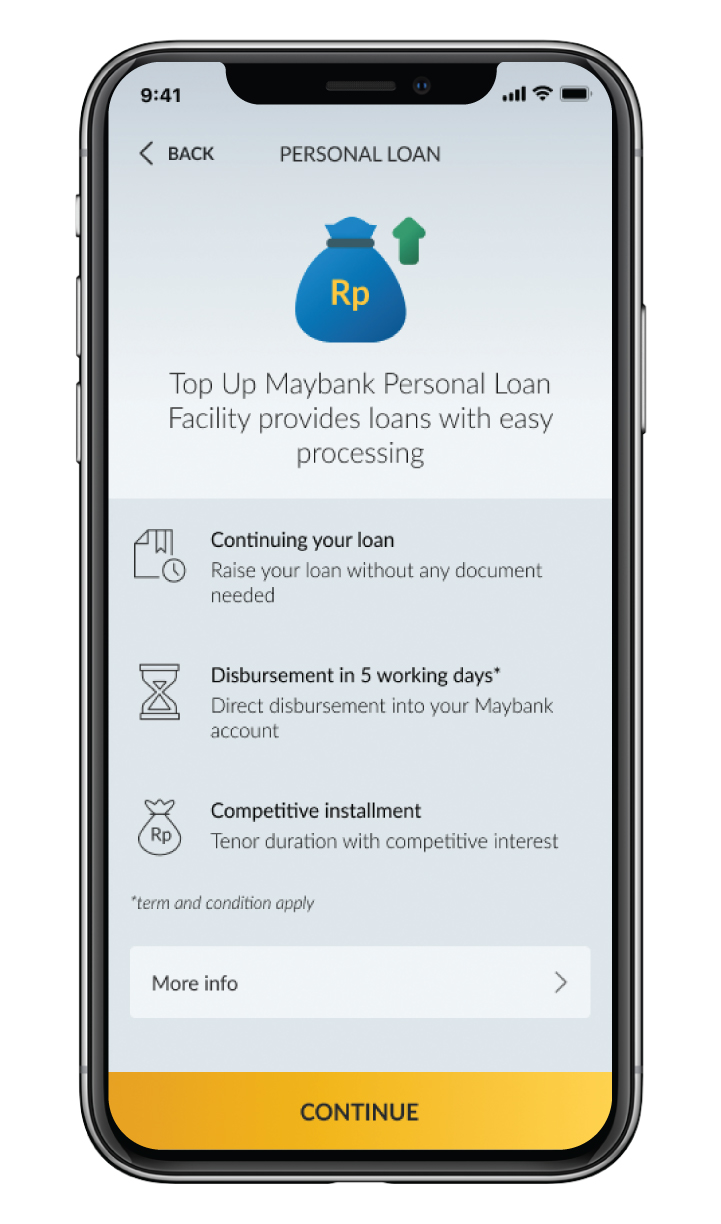
Read Maybank Personal Loan Top Up product, then click “continue”
|
|
 |
|
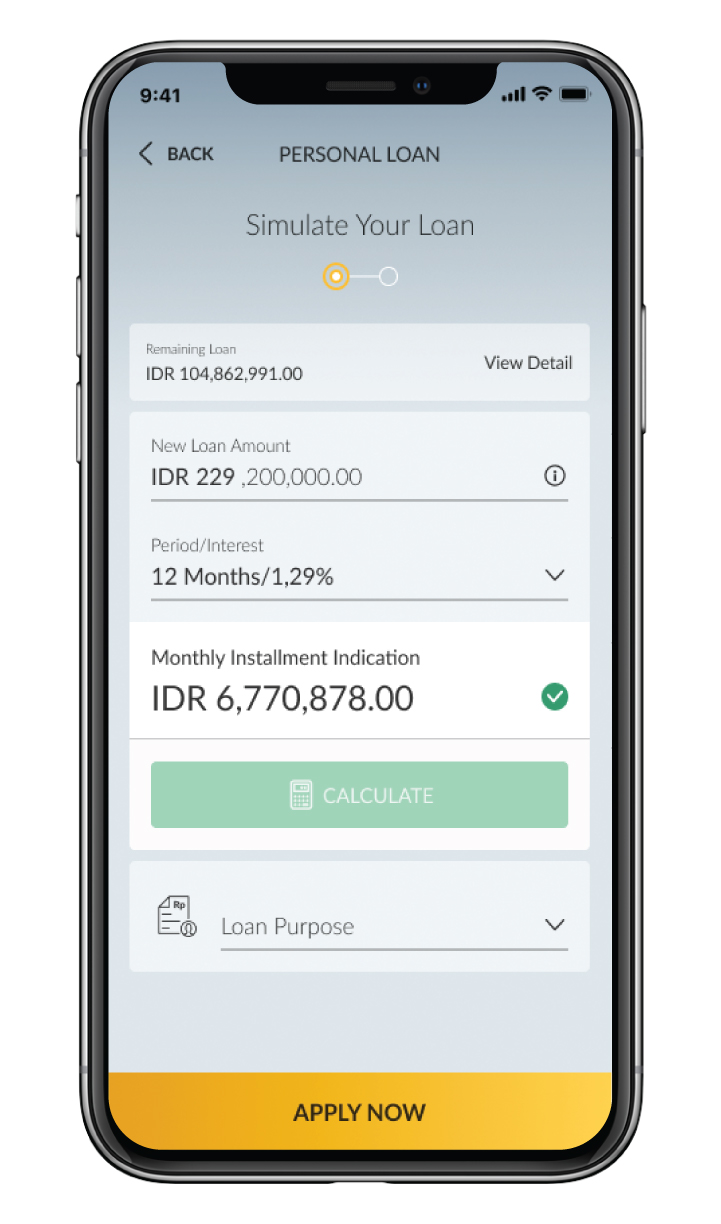
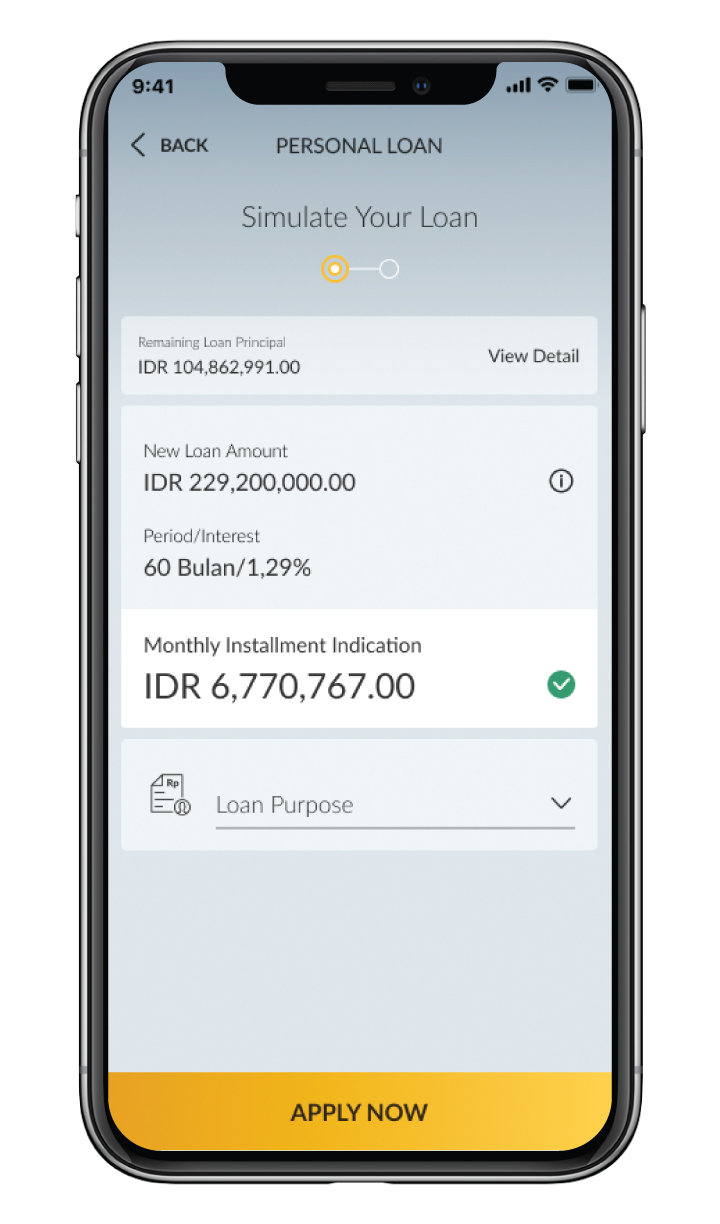
Review your loan simulation and fill in the loan purpose, then click “Apply Now.”
a. Customers can increase their existing Maybank Personal Loan limit to a higher amount than the initial limit granted. Customers may select or adjust the loan amount or tenure according to the maximum limit and tenure provided by Maybank. |
|
 |
|
b. Customers can restore their Maybank Personal Loan limit to the original limit and tenure granted. Customers cannot select or change the loan amount or tenure.
|
|
 |
|
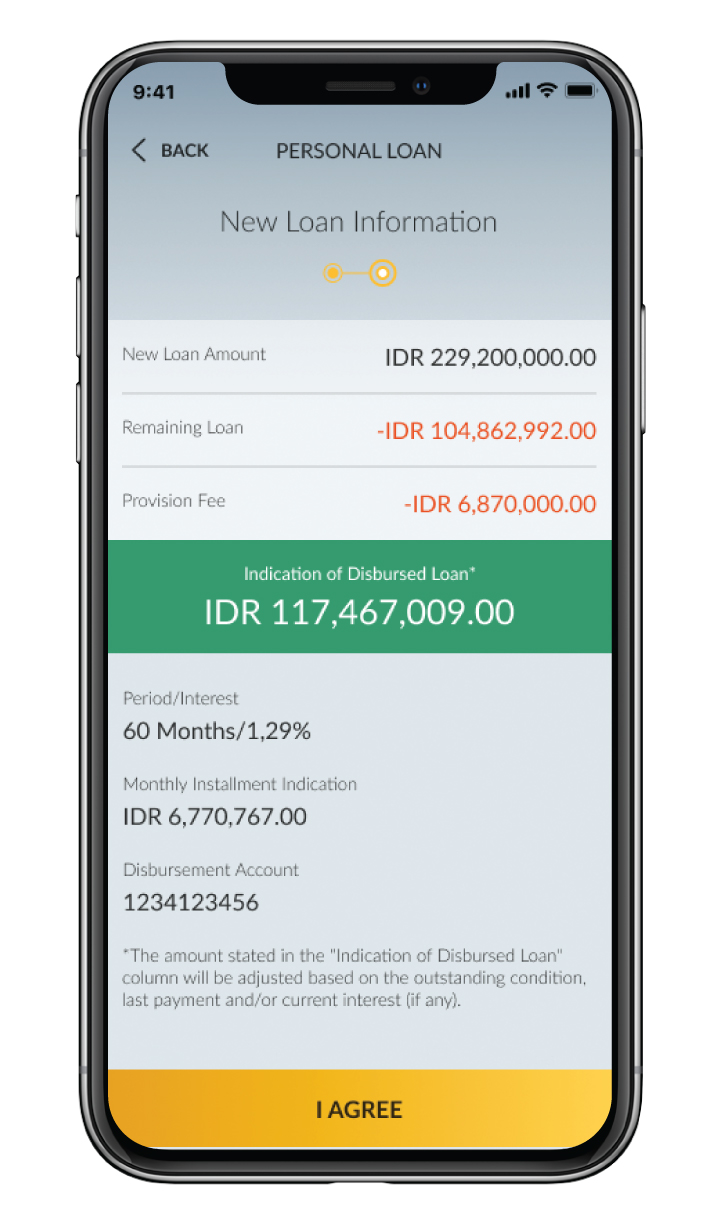
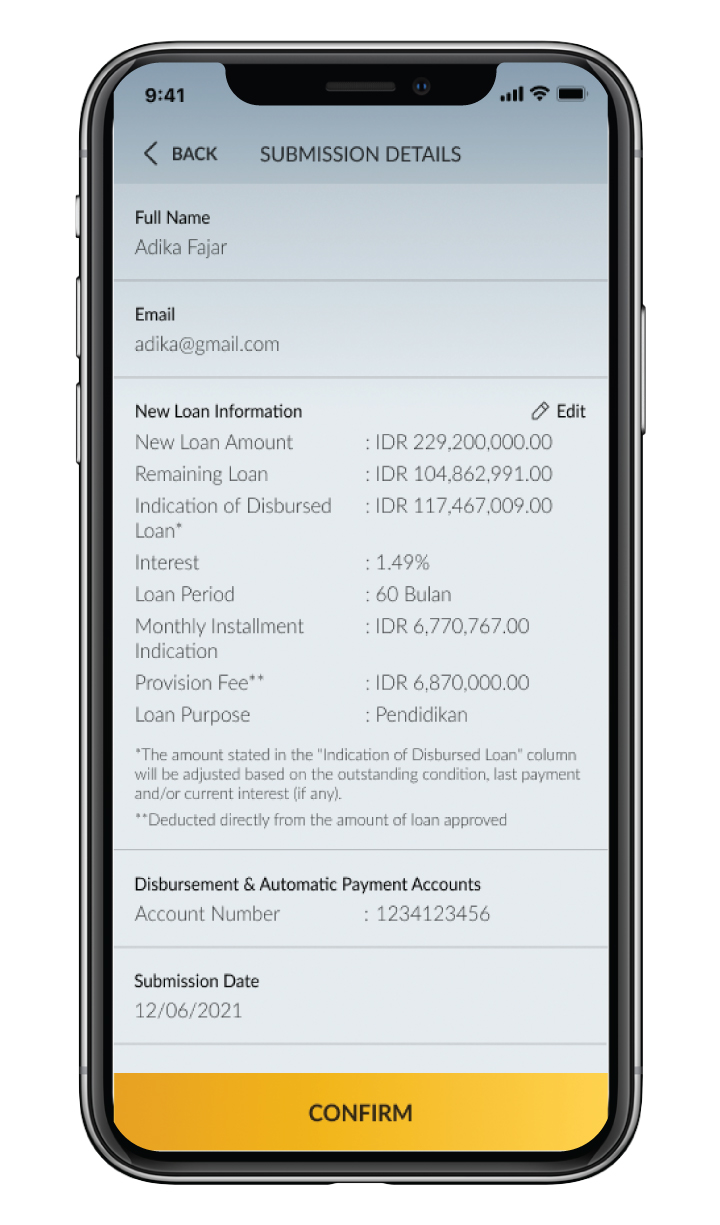
Review the *new loan amount information again. If everything is correct, Click “I agree”
*The amount stated in the “Indication of Disbursed Loan” column will be adjusted based on the outstanding condition, last payment, and/or current interest (if any) |
|
 |
|
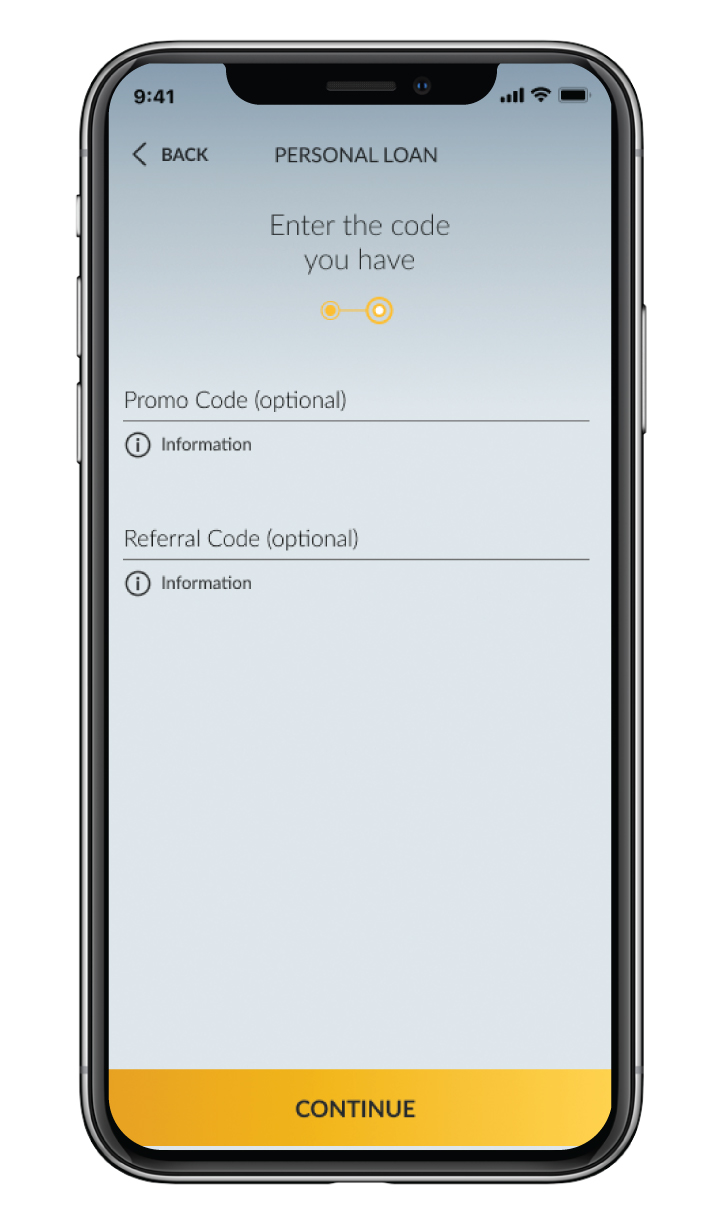
Input referral/promo code (optional, if any). Click “next”
|
|
 |
|
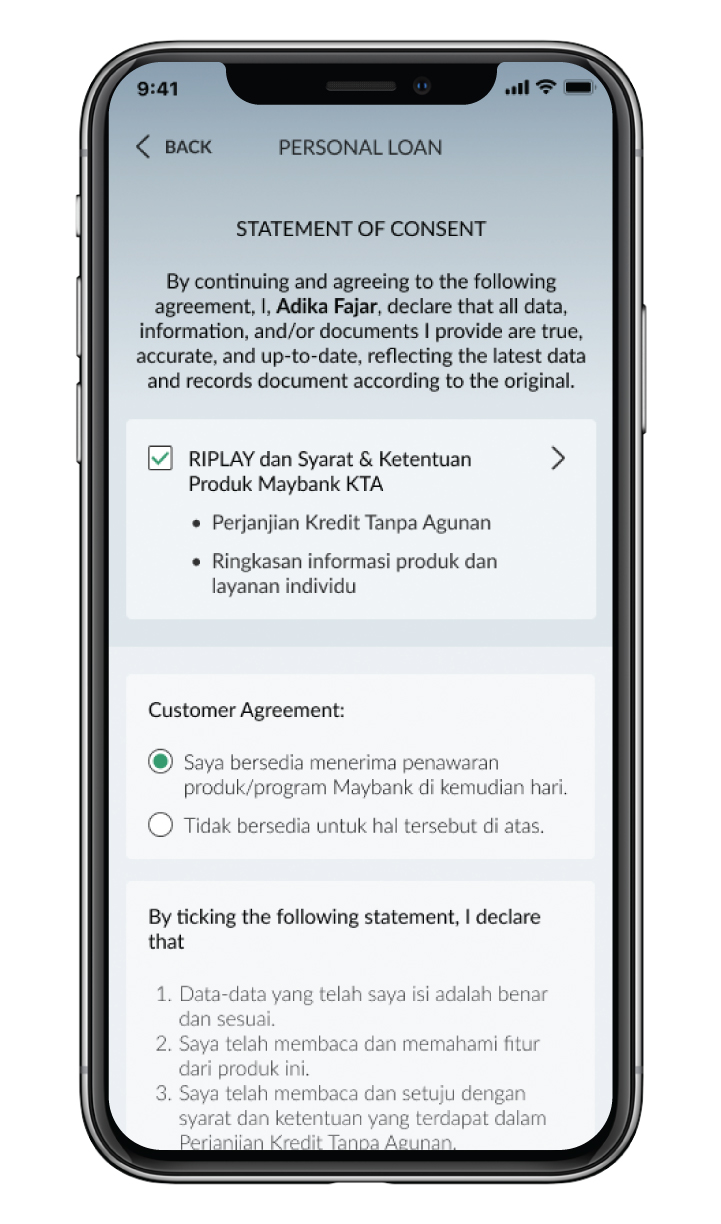
Click checkbox to agree to the Maybank Personal Loan application agreement
|
|
 |
|
Check your submission details, If it’s correct, click “confirm”
|
|
|
|
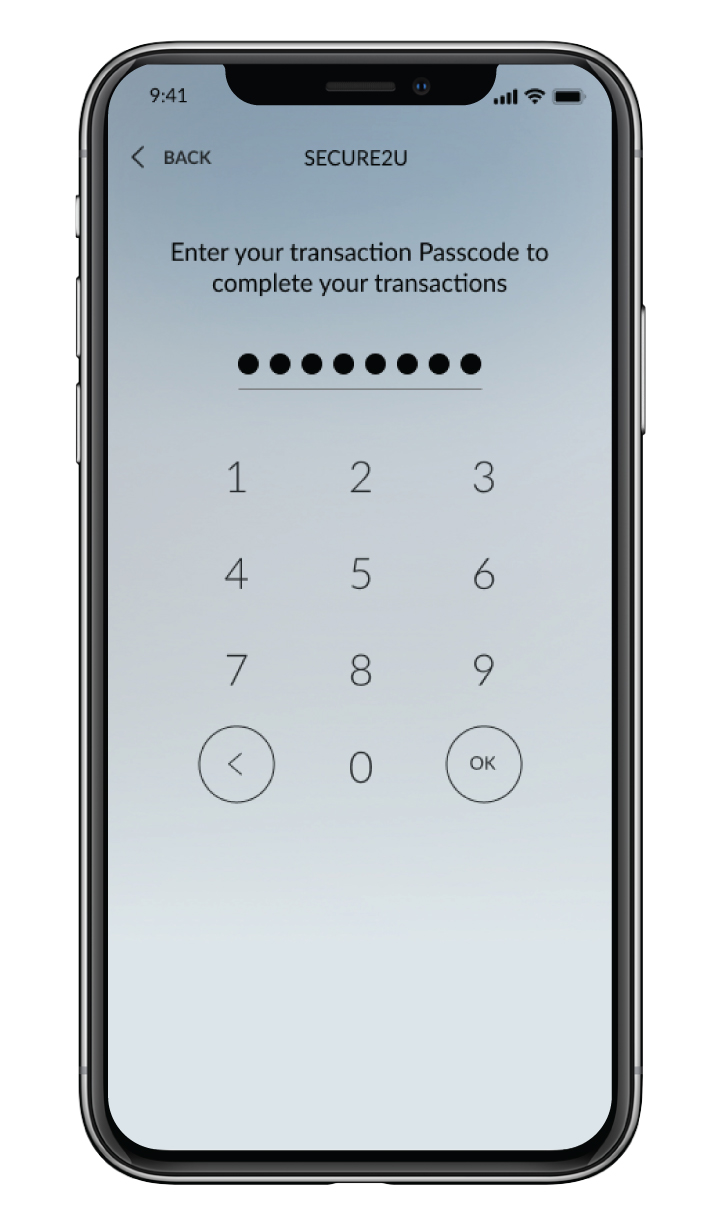
Input passcode Secure2u
|
|
|
|
|
|
|

SHARIA
Halal Indo Expo 2026
Muslim Life Fest 2026
Islamic Banking as a Service (iBaaS)
Sukuk Investment
Sharia Mutual Fund
Shariah Wealth Management
Simpanan Syariah
Shariah Promotion Program
Hajj and Umrah
Zakat, Infaq & Sadaqah
Sharia Business
Property Financing iB
Instant Financing iB
Car Financing iB
Motorcycle Financing iB
Profit Sharing
Shariah Leaders Forum
OTHERS
Customer Support
Japan Desk
KPR Maybank Payroll
Promotion
Customer Support
Visit Malaysia
News & Announcements
KPM Privilege
Locate Us
Refer a Friend
Fees & Charges
Rates Information
Maybank Basic Credit Interest Rate
Customer Education
External Link
Security Privacy and Policy
Social Media Community Guidelines


Select Country






Corporate Online Services